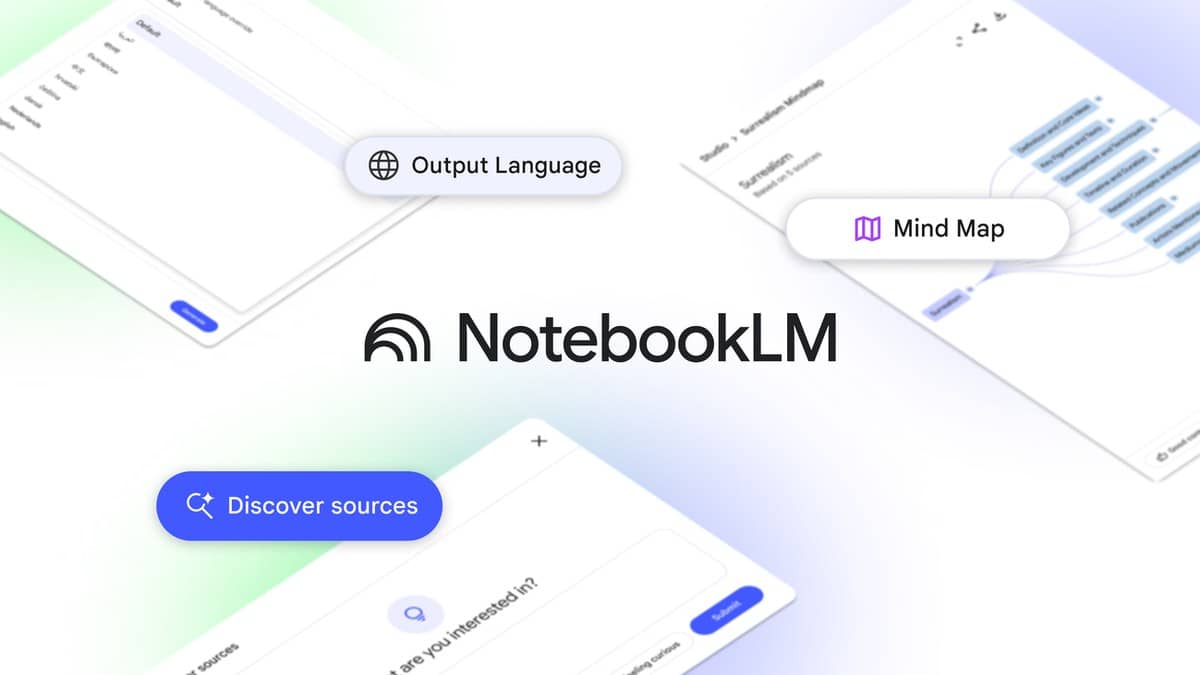
To create a mind map in NotebookLM, open a notebook with your sources and select the Mind Map chip in the chat. Google’s current help page calls the tool Gemini Notebook and says the generated map appears as a note in the Studio panel. You can expand its branches, select a topic to ask questions and download the map from its viewing window.
The feature is useful when your immediate problem is seeing how a chapter fits together. A summary gives you a sequence of sentences; a mind map gives you a branching view of topics. That can help you decide where to begin reading, but it should not become a replacement for the underlying material or your course syllabus.
| What you want | Documented action |
|---|---|
| Create the map | Select Mind Map in notebook chat |
| Find it again | Open its note in Studio |
| Explore a topic | Select a node to ask about it in chat |
| Save a copy | Use Download inside the map window |
| Use the app | The current help page says this feature is unsupported there |
How to create a mind map in NotebookLM
The steps here have been checked against Google’s official Mind Maps help page, opened on 2 November 2026. This is a documentation based walkthrough, not a signed in product test. Google’s official study feature introduction also describes interactive diagrams that connect concepts in the uploaded sources.
Start with an existing notebook, or create one and add source material. For a classroom revision exercise, choose a chapter or a small group of related readings that you are allowed to upload. Keep the topic narrow enough that you can judge whether the resulting structure makes sense. A collection that mixes unrelated subjects will be harder for you to audit.
In the notebook chat, choose the Mind Map chip. Find the generated note in Studio and open it. Begin with the broad branches before drilling down into details. Read the root topic and its major categories, then compare those categories with your textbook headings. If the map gives an unfamiliar heading, find what it refers to before assuming it is a term used by your teacher.
Google documents zooming, scrolling and expanding or collapsing branches. Use those controls to separate the overview from the detail. For example, expand one branch about a process, then collapse it before inspecting a second branch about applications. This is an organisational example, not a promise about which branches the tool will generate for a particular chapter.
How to use NotebookLM mind map prompts
Selecting a node lets you ask questions about that topic in the notebook chat. The help page does not describe a dedicated prompt field for manually designing every branch. Use your follow up questions to investigate the content rather than assuming that a request will redraw the map exactly as a conventional diagram editor would.
Try this original question after selecting a concept: “Explain this concept using the uploaded chapter. Identify the source passage that supports the explanation. Separate the definition from any example you add.” This is intended to make checking easier. Open the cited source and compare it with the response, especially when a term has a precise meaning in your subject.
A second original question can test a connection: “How is this topic related to the other branch I name below? Show what the source explicitly says and label any interpretation separately.” A line in a diagram can suggest a relationship without explaining its nature. Ask whether two ideas are stages, alternatives, examples or causes, then confirm that distinction in the reading.
For revision, try a third original question: “Ask me one short question about this node. Wait for my answer, then explain any missing point using the source. Do not introduce material outside this notebook.” These prompts are proposed study exercises, not tested outputs. Google warns that the tool can be inaccurate and asks users to double check responses.
How to download a NotebookLM mind map
Inside the map window, look for the Download control among the options at the top right. Google also documents sharing the entire notebook so another user can open the same map in Studio. Downloading an output and granting notebook access are different decisions. Review the contents and permissions before giving someone access to course material or your notes.
The help page adds a specific restriction: publisher rules may prevent downloads of artifacts generated from a notebook containing a Play Books ebook. If a download is unavailable, check the source restrictions before assuming the map has failed. To regenerate a map, the documented process uses More and Delete note. Save anything you want to retain before removing an existing output.
Why is the NotebookLM mind map not showing?
Check the interface you are using first. The help page currently says the Gemini Notebook mobile app does not support Mind Maps. This can explain why a feature described for the website is absent in the app. The page also says usage limits apply, but this guide does not quote a daily allowance because those limits can change.
For other study outputs, read our NotebookLM flashcard and quiz guide. Our general NotebookLM study guide covers source checks, while the Gemini PDF guide focuses on summarising documents. Pick the output that answers your immediate study question, and return to the original chapter whenever the AI explanation is unclear.