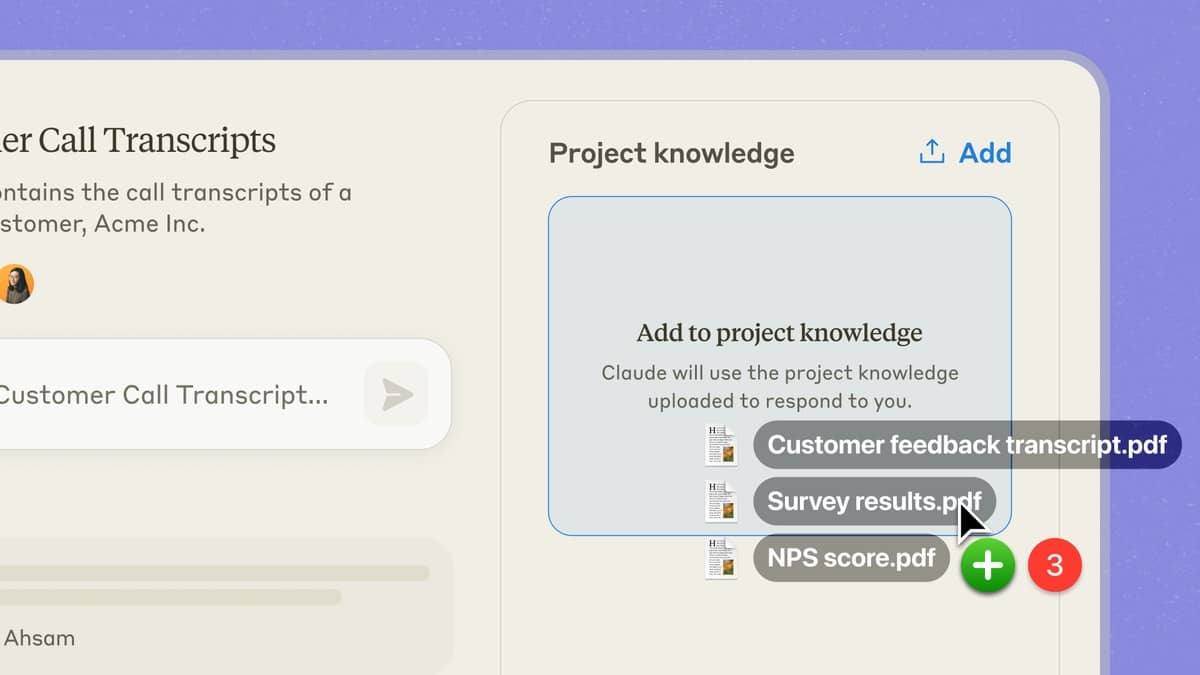

To get a PDF summary in Gemini, open the Gemini web app, enter a question, choose Add files and Upload Files, attach the document and submit. Google's current help page allows supported nonvideo files of up to 100 MB each, with up to 10 files in a prompt subject to availability. For studying, start with one chapter and ask for a summary you can check against the original PDF.
The important distinction is between accepting a file and understanding every detail in it. Google warns that very large uploads can produce responses that miss connections or details. A shorter, clearly scoped document gives you a more manageable result to review. This guide follows Google's official file upload instructions, read on 29 October 2026 at 21:59 IST.
| Question | What Google documents |
|---|---|
| Sign in needed? | Yes, to use file uploads in Gemini Apps |
| File count | Up to 10 in one prompt, subject to availability |
| Document size | Up to 100 MB for each supported nonvideo file |
| Usage allowance | Rolling limits apply and reset after some time |
How to upload a PDF to Gemini for a summary
In the Gemini web app, write the request in the text box, select Add files, then Upload Files to choose a supported local document. Google lists Submit as the final step. A practical first request is to identify the document's subject and section headings before producing a longer explanation. That makes it easier to notice whether the attached file is the intended chapter.
Google also offers Add from Drive. Its help page says this route requires Keep Activity to be on and Google Workspace to be connected to Gemini Apps. If the connection is absent, an option to connect it should appear. For work or school accounts, the organization's administrator must enable access to apps in Gemini for Drive uploads. The local upload route and Drive route have different requirements.
These interface steps were checked against the public help page; this article does not claim a signed in test or a successful analysis of a private student file. Use a document you are allowed to share. For an initial trial, a public course handout or your own short notes is a more suitable editorial example than a record containing another person's personal information.
Five original prompts for studying a PDF
The prompts below are original examples written for this guide. They specify a task and a checking method, rather than assuming that attaching a PDF guarantees a correct answer. Replace the chapter or topic with the material you uploaded. If an answer gives page references, check those references yourself before using them in coursework.
- For a chapter overview: "Use only the attached chapter. Summarise its central argument in 150 words, then list five key ideas. Beside each idea, give the section heading where I can verify it. Say if any part is unclear."
- For difficult terminology: "Find eight important terms in this PDF. Explain each in plain English, then give an original everyday example. Label your own examples separately from statements actually made in the document."
- For active recall: "Create five short answer questions based only on this chapter. Show the questions first and wait for my answers. Afterwards, compare my answers with the relevant sections and explain what I missed."
- For an essay plan: "Using the uploaded reading, build an outline for an essay on [topic]. Give a possible claim, supporting passages and a counterargument if the text contains one. Do not invent quotations or references."
- For a revision checklist: "Turn the section headings into a revision checklist. For each section, suggest one question I should answer without looking at the PDF. Flag topics the document mentions but does not explain fully."
Each prompt has a different purpose: overview, vocabulary, retrieval practice, argument planning or revision. Run them separately if you want to review one task at a time. A requested source restriction is an instruction to the model, not proof that every sentence it produces came from the attachment. Keep the PDF open while checking the result.
Why Gemini may reject a file or miss information
A rolling usage limit is different from a file size limit. Google says file analysis access resets after some time and suggests trying later or considering a plan with higher limits. The page does not provide a universal reset time for every reader. A file under 100 MB can still encounter a usage limit, so repeatedly shrinking it may not address the message shown.
If Gemini says it failed to analyse a file correctly, Google's instructions say to upload it again. If the warning concerns uploads being too large for the best results, Google recommends smaller files with less content. An accepted upload may still be too broad for a question that needs many scattered details, which is why a chapter sized study task is a useful starting point.
For a different study workflow, see our Devialet brings Phantom Ultimate Pulse Blue to India at Rs 2.4 lakh and Pixel 10 India price: Rs 79,999 on Google Store, Rs 74,999 with offer. Our Pixel 10a now Rs 55,999 on Google Store India, Rs 6,000 above launch price explains how to define a task and output format before submitting it.