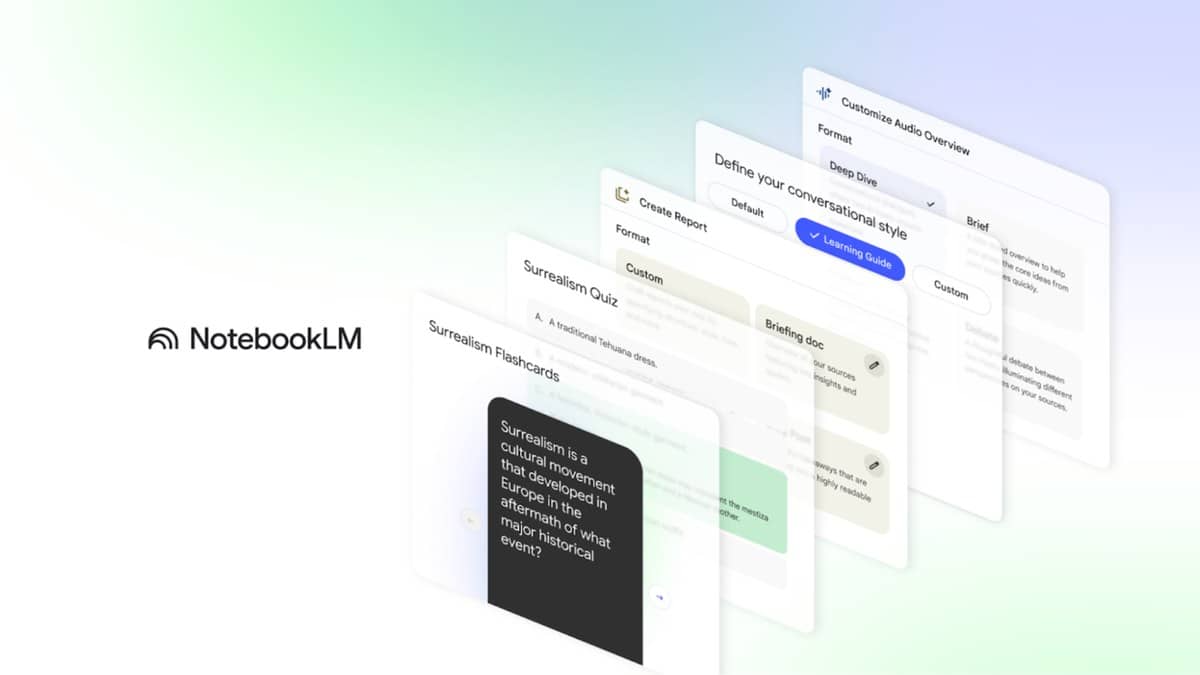
To make NotebookLM flashcards, open a notebook containing your study material, go to Studio and choose Flashcards. Choose Quizzes for practice questions, or use the pencil control to customise the task before generation. Google's current help pages use the name Gemini Notebook. You need permission to edit the notebook to generate or remove these study aids.
| Task | Where to start |
|---|---|
| Add study material | The notebook's source panel |
| Create cards or questions | Studio |
| Set the focus | Customisation prompt and difficulty controls |
| Check remaining allowance | Settings, then Usage |
How to create NotebookLM flashcards and quizzes
The following sequence follows Google's official flashcard and quiz instructions, checked on 26 October 2026. Start with an existing notebook or create one and add your sources. Before generation, use the customisation control to describe the audience, topic and difficulty you want. Generation runs in the background while you continue using the notebook.
After opening the result, try answering before revealing an explanation. The interface lets you record whether you remembered a flashcard and revisit material you missed. Quiz controls include a hint and navigation between questions. The explanation control can help you inspect the reasoning behind an answer, but the original study source remains the reference for checking it.
Flashcards can be downloaded as a CSV file. Google notes that publisher restrictions may prevent downloading generated material when a notebook contains a Play Books ebook. Do not assume every shared notebook or every source permits the same actions.
Which sources should you upload?
Google's source documentation lists PDFs, Word documents, pasted text, web pages and other supported material. It also explains a useful limitation: a web-page import captures that page's text, not every linked page or embedded video. A public YouTube source depends on available captions and imports the transcript.
For an exam topic, begin with the relevant chapter and your own notes rather than a large, mixed collection. Give each source a recognisable title. If a question appears to come from the wrong chapter, inspect the material you included before repeatedly changing the prompt. That is an editorial workflow suggestion, not a claim that a particular source set guarantees a correct result.
The source guide says Google files do not contribute their comments or footnotes to an import. If an essential correction exists only in a comment, check that the material actually available inside the notebook contains it. Upload or import only material you have permission to use, especially when working with unpublished classroom or workplace documents.
Three original prompts for revision
Use a prompt to narrow the task, rather than merely asking for more questions. These examples are original instructions to adapt to your own source material. They illustrate a workflow and are not presented as tested outputs or promises about marks.
For definitions: Create revision flashcards from the source titled Chapter 4 Notes. Focus on the terms listed in its opening section. Put one concept on each card. Keep the answer short, preserve the textbook terminology, and flag any term whose definition is absent from the material.
For conceptual differences: Make a medium-difficulty quiz on the differences between the two processes explained in my uploaded chapter. Use short scenarios instead of asking only for definitions. Base the correct answer on the chapter, and identify any question that cannot be resolved from these sources.
For revision after mistakes: Focus a new practice set on the concepts named in my Mistakes Log source. Vary the wording so I must explain the idea rather than recognise a sentence. Avoid adding unrelated topics. Where the notes disagree, describe the disagreement instead of silently selecting one version.
How do the current usage limits work?
As checked at 03:03 IST on 26 October 2026, Google's usage page describes limits based on computing usage, with allowances refreshing every five hours until the weekly limit is reached. Prompt complexity, conversation length and the features used affect consumption. This does not support promising a fixed number of flashcard sets to every reader.
Open Settings and then Usage to inspect your own allowance. The help page also describes notices in chat and an indication of expected usage during Studio generation. Those account-specific indicators are more useful for planning your next session than an old screenshot of someone else's remaining quota.
Google's availability guidance includes India and explains that managed school or work accounts may need administrator-enabled access. If access is missing, establish which account you are using before treating it as a problem with the source file.
For related reading, explore our coverage of AI in teaching, AI and legal education, and Google's Gemini agent for work.