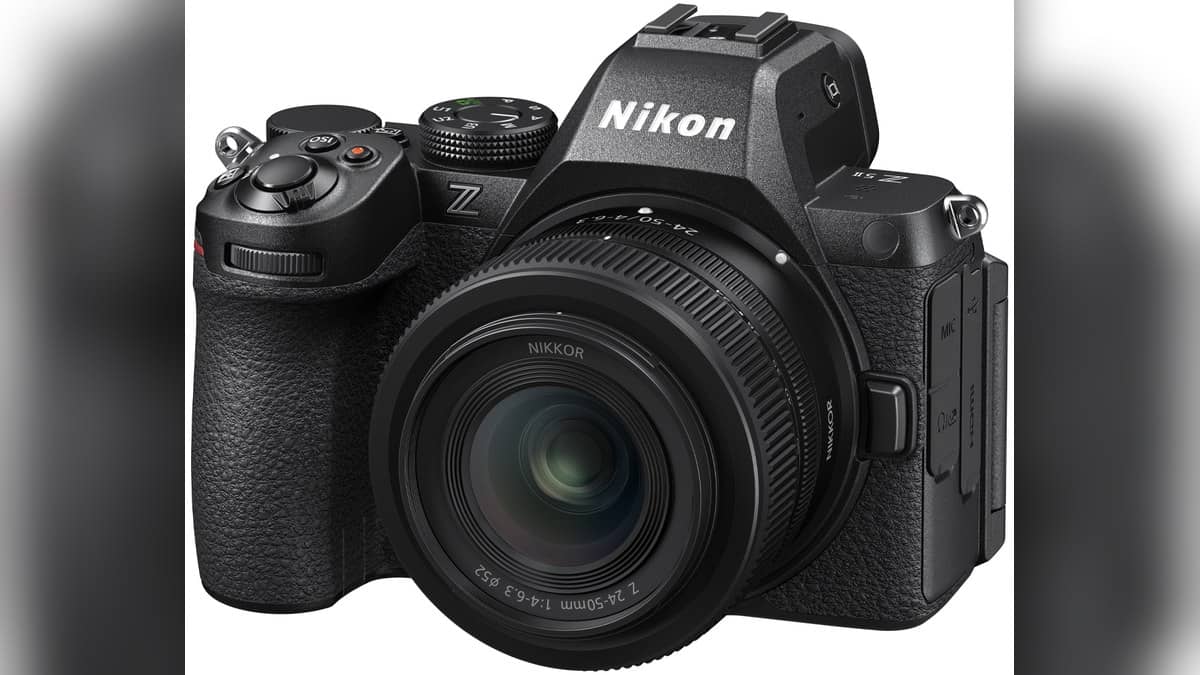
NEW DELHI: Nikon Z5II owners can check their camera firmware in the setup menu before installing version 1.20. Nikon lists this update for cameras running C firmware 1.00 to 1.11. The useful starting point is the version already on your own body: a camera showing 1.20 does not need this download again.
| Camera | Nikon Z5II |
|---|---|
| Update listed | C firmware 1.20 |
| Computer download file | Z5_2_0120.bin |
| Version check | Setup menu > Firmware version |
| Other documented routes | SnapBridge and Nikon Imaging Cloud |
Read the version letters before downloading
The Z5II reference guide separates camera firmware from firmware for connected accessories. C identifies the camera; LF/MA identifies a lens or mount adapter, S a flash, and TC a teleconverter. Only attached accessories appear. Read the C entry when deciding whether the camera itself needs this package.
That distinction matters if the camera normally lives with a lens attached. A number beside the lens entry is not the installed camera version. Write down the C value before moving to the computer, so the download decision follows the camera menu rather than a remembered notification on a phone.
Choose the route that matches your setup
Nikon documents a computer download, a paired smart device using SnapBridge, and a direct Nikon Imaging Cloud route. SnapBridge can notify a paired device of an update and transfer it to a camera memory card. Nikon cautions that the notification may appear later than the download on its website.
For the cloud route, an update notification makes an Update (from Nikon Imaging Cloud) option appear under Firmware version. The reference guide says downloading through that option is followed automatically by installation. An absent phone alert therefore does not establish that the Download Center has no newer firmware.
Think about where you will complete the job before starting it. A photographer preparing equipment at a desk may find the computer route easier to inspect, while someone already using Nikon Imaging Cloud can follow the camera prompts. Keep the instructions for the chosen route open instead of mixing steps from different methods.
Use the computer file exactly where Nikon expects it
For the computer method, copy Z5_2_0120.bin with a card reader onto a card formatted in the camera. Put it in the top directory, outside any folder. Insert the card, open Firmware version and follow the displayed instructions. After completion, switch off, remove the card and check the version again.
Nikon warns against installing with lenses other than Z-mount NIKKOR models, or adapters other than FTZ and FTZ II, attached. Treat that compatibility check as part of preparation. The support page also explains that the package includes earlier changes, so owners should read the previous-version notes as well as the newest section.
What changes in everyday use
Version 1.20 renames Cloud Picture Control to Imaging Recipe and changes the download menu wording to Download Imaging Recipes. It also adds controls concerning saved focus position, automatic monitor display switching and inactive FTP connections. These are changes to the working interface that can make an older tutorial look unfamiliar.
The Z5II itself combines a full-frame 24.5-megapixel sensor with Nikon's EXPEED 7 processor. Its dedicated Picture Control button and support for downloadable imaging presets make the recipe terminology particularly relevant. If you keep a personal checklist for colour settings, update the menu names in that checklist after installation.
For an Indian event photographer moving between still photographs and short video clips, the practical task is to rehearse the familiar routine again: select a colour preset, recall a saved setup and confirm the expected display behaviour. This is an operational check, not a claim that installing firmware guarantees better photographs. Finish it before the next assignment rather than discovering a renamed menu while a subject waits.
Related reading: Sony camera range | Canon photo printing options | Galaxy F36 camera recording explained.
Official sources: Nikon Z5II firmware download and instructions, firmware menu reference and Z5II specifications.