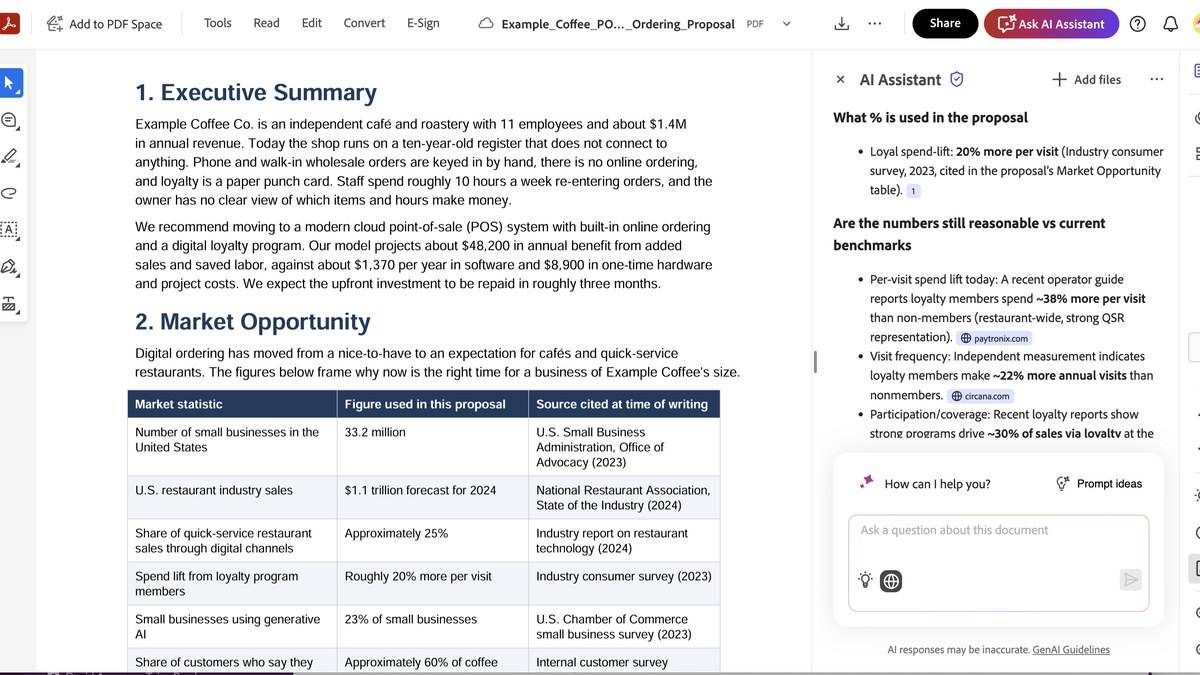
Adobe Acrobat AI Assistant lets you ask questions about a PDF and follow numbered citations back to the supporting passage. Open the PDF, select AI Assistant, enter a question and submit it. The useful next step is to open the citation and compare the answer with the actual text, especially when a deadline, eligibility condition or exception matters.
This guide follows Adobe's public help instructions checked on 7 November 2026. It explains the documented workflow, rather than claiming a hands-on account test or a measured accuracy result. For an Indian student reading an English syllabus or a worker reviewing a policy, the attraction is a question tied to a document that can be checked.
| Check | Official requirement |
|---|---|
| File size | Less than 100 MB |
| Length | Up to 600 pages |
| Question length | Under 500 characters |
| Access | Online, signed in with a supported Adobe ID |
How to use Adobe Acrobat AI Assistant with a PDF
Adobe's question and answer instructions give three basic actions: open a PDF and select AI Assistant; choose a suggested question or type your own; then select Submit. Start with a narrow request, such as finding the paragraph that describes an application deadline, rather than asking for everything important at once.
When the response appears, select its source number to jump to the relevant section. Adobe also documents Copy for an individual answer and an option to copy the full summary. Before reusing either, read the passage around the highlighted material. A qualification in the next paragraph can change what a short answer means.
For several documents, Adobe says Add files creates a PDF Space, where questions can cover the combined material. Keep the task explicit when documents have similar titles. Ask which document and section supports each answer. A current circular and an earlier circular should not become one undated set of instructions in your notes.
Acrobat AI Assistant limits: pages, language and images
The technical requirements page says a PDF must be below 100 MB and may contain up to 600 pages. Password protection, usage restrictions and PDF Portfolios are excluded. Adobe notes that server settings determine file limits and may change them, so these figures were checked at 22:02 IST on 7 November 2026 rather than treated as permanent promises.
Questions must be under 500 characters. Selected text must be under 8,000 characters and come from one page. Adobe also says AI Assistant does not support images or complex vector graphics. If an important result exists only in a chart or illustration, do not assume the text answer has interpreted that visual correctly.
English is in the supported file language list; Hindi is not listed on that page. An English interface therefore should not be taken as evidence that a Hindi PDF is supported. The service requires an internet connection, generative AI enabled and a supported signed-in account. Check your own access terms before depending on it for a deadline; this guide does not establish an India subscription price.
Five PDF prompts for study and office work
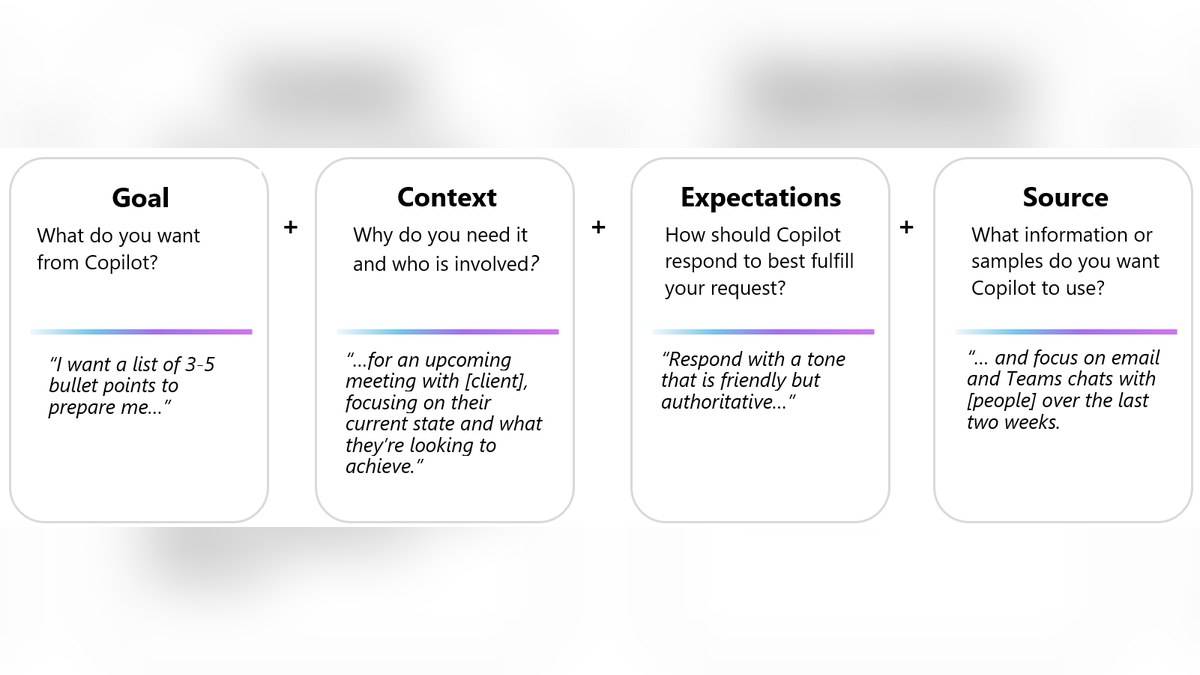
These are original prompts to adapt, not outputs from a live test. Adobe's prompt guidance recommends a clear task, context, expectations and format. Each example below asks for an inspectable result rather than an unsupported verdict.
- Find conditions: “Using this notice only, list application conditions in a table. Add a source citation for each row. Mark missing information as not stated.” This suits a public circular.
- Prepare revision: “From this chapter, write six revision questions. Put the supporting section beside each question. Keep the answer key separate.” This helps you return to the text.
- Track dates: “Extract every deadline in this document. Include the date, the required action and its source. Do not infer dates from examples.” This is useful for schedules.
- Explain a term: “Explain this policy term in plain English using its definition here. Identify any exceptions and cite them.” This keeps the explanation tied to the document.
- Find gaps: “Which parts of my question cannot be answered from this PDF? Separate supported statements from information the document does not provide.” This makes uncertainty visible.
How to check an AI answer before using it
Compare names, dates, units and exceptions with the PDF itself. If a citation does not support the sentence beside it, keep the passage as your reference and revise the note. For consequential documents, a short summary should help locate the material you need to read, not decide the matter for you.
For related document workflows, read our guides to Gemini PDF summaries, NotebookLM source tables and Claude Projects. These are separate workflows with their own requirements; the Acrobat limits above apply to the official pages linked here.