To download a Video Overview, generate it in your notebook, open the finished video and select Download. Google's current instructions are published under Gemini Notebook, which readers searching for “NotebookLM video overview download” should look for in the help centre. If the notebook includes a Play Books ebook, the publisher's content restrictions may prevent downloading the generated output.
The useful starting point is a small set of sources you understand. A video assembled from the wrong chapter will not become a good revision aid just because its narration is fluent. For a class presentation, choose the reading that supports the assigned topic, then decide what the audience should be able to explain after watching.
| Task | Current help page instruction |
|---|---|
| Create | Open a notebook with sources, then Studio and Video Overview |
| Generate | Select Generate now or Generate later |
| Download | Select Download on the generated video |
| Hindi narration | Listed for Explainer and Short formats |
| Cinematic narration | English only |
How to create and download a NotebookLM Video Overview
The official Video Overviews help page says to open or create a notebook with sources, select Video Overview in Studio, customise it and choose when to generate. Processing can sometimes exceed 30 minutes. Once it is ready, open the generated video's title in Studio, play it and use Download to save the file.
Check the output against your reading before sharing. Google warns that generated voices and visuals may contain inaccuracies or audio glitches. A useful review is to pause after each main claim and locate its support in the source. Pay particular attention to labels, definitions and any numbers that a classmate might copy into notes.
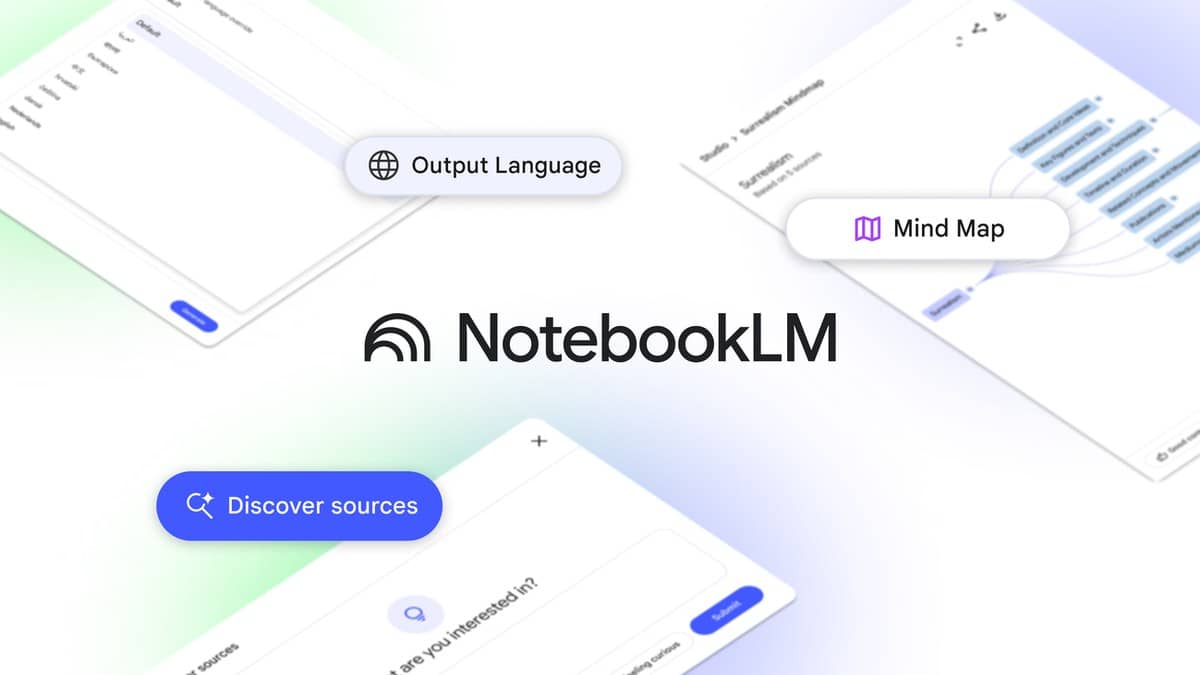
The current help lists Cinematic, Explainer and Short formats. Hindi appears in the supported lists for Explainer and Short, while Cinematic supports English only. This differs from the terminology in Google's older Video Overview announcement, which used “Brief”. Follow the options displayed in your account rather than expecting every older screenshot to match.
Five original Video Overview prompts for students
Use these as steering instructions where customisation is available. They are editorial examples, rather than prompts tested in a signed in account. Replace the bracketed text with your topic and check whether the sources contain the material requested. A narrowly framed instruction makes it easier to judge whether the finished explanation actually serves the lesson.
1. Build a concept sequence. “Create an overview of [topic] for a student meeting it for the first time. Start with the prerequisite idea, introduce the central concept, then connect it to one example from my sources. Keep the terms consistent with the reading.” Use this when an explanation feels confusing because it introduces an application before its underlying idea.
2. Separate two similar terms. “Focus on how [term A] differs from [term B]. Explain what each means in these sources, identify the distinction students are likely to miss, and finish with a question that asks the viewer to distinguish them.” This is useful when revision notes contain definitions but do not show why the difference matters.
3. Audit a worked method. “Explain the method used in the worked example on [section]. Show the purpose of each stage and identify the assumption that makes the next stage valid. Use only the quantities already supplied in the example.” Use it to revisit the reasoning behind a calculation, then redo the example independently on paper.
4. Prepare a seminar introduction. “Make an overview that introduces the central argument of [reading] to my seminar group. Separate the author's claim, the evidence used to support it and a question the reading leaves unresolved. Do not add an outside quotation.” This helps you plan a discussion without presenting an AI paraphrase as the author's exact wording.
5. Create a Hindi revision explanation. “Explain [topic] in Hindi for revision. Keep essential English technical terms alongside their explanations, use the examples in my uploaded chapter, and end with three recall questions. Flag any part the sources do not explain.” Choose an appropriate supported narration language as well as writing the instruction; the prompt alone is not a substitute for the language setting.
Review controls, sharing and missing download options
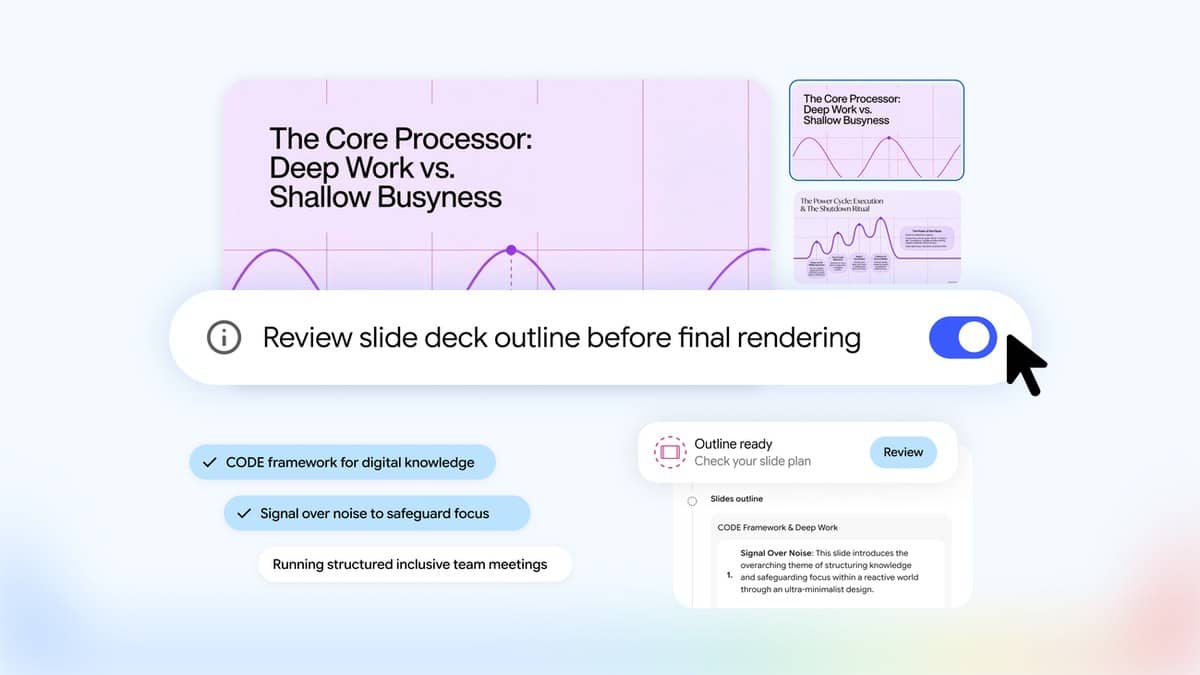
The current help reserves the producer notes co creation feature for Google AI Ultra subscribers. Where available, switch on Review producer notes before generation, review the plan and add feedback before selecting Proceed. Google's 19 October co creation announcement gives broader rollout language, so use the help page and your account's visible eligibility for the specific review control.
For link sharing, the help page requires recipients to have access to the full notebook. Public sharing is enabled for consumer accounts and disabled for Workspace Enterprise or Education accounts. Review what else the notebook contains before changing its access. If a download is unavailable, check the documented ebook restriction rather than assuming that every video must be exportable.
For related source based study workflows, see our Devialet brings Phantom Ultimate Pulse Blue to India at Rs 2.4 lakh, Pixel 10 India price: Rs 79,999 on Google Store, Rs 74,999 with offer and Pixel 10a now Rs 55,999 on Google Store India, Rs 6,000 above launch price. Choose the output that fits the task: a video can introduce a topic, while recall questions help you check what you can explain without replaying it.