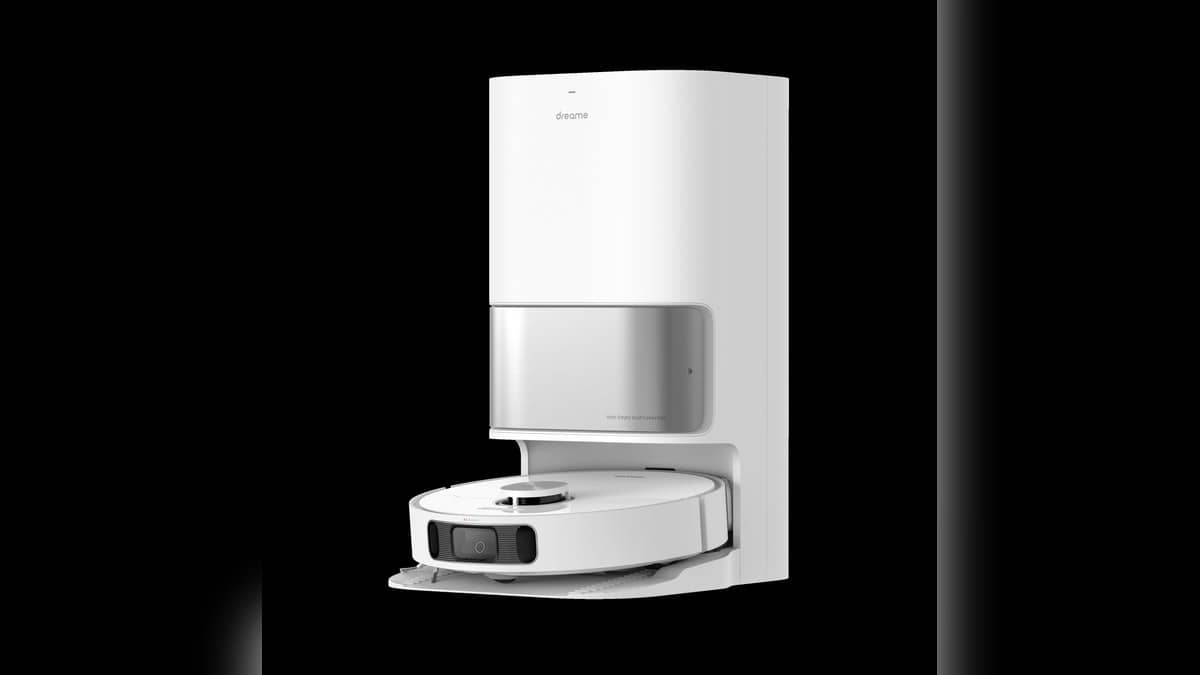
NEW DELHI: Dreame L10s Ultra owners should put the robot on charge, keep it switched on and ensure its battery is above 15% before attempting a firmware update. Dreame India's support page directs users to Settings > Firmware Update and also requires a stable home Wi-Fi connection.
| Task | Official instruction |
|---|---|
| Battery requirement | Over 15% |
| Robot state | Charging and switched on |
| Network | Stable home Wi-Fi |
| Update menu | Settings > Firmware Update |
| During installation | Robot lights blink |
| Scheduling menu | Settings > Scheduled Cleaning > Add |
The instructions sit in Dreame India's support section for L10 Pro Ultra and L10s Ultra. They explain how to perform the operation; they do not announce a new firmware version, an India release date or a list of newly added features. Owners should distinguish an available update shown in their app from a general instruction page.
Prepare the robot before opening the menu
Start by checking that the L10s Ultra is actually charging at its station. Then check its battery reading. Dreame's wording is above the threshold, so a reading exactly at the limit does not meet the published condition. Give the robot time to charge before trying again if necessary.
Next, confirm the home Wi-Fi connection is stable and open the robot's settings. Select Firmware Update using the route specified by the support page. A useful preparation is to note the version displayed before beginning, so an owner has a clear record of what changed if the app later presents a different version.
For an Indian household that sends the L10s Ultra out on a recurring cleaning routine, this is best treated as a separate housekeeping task. Begin when the robot can remain at its charging station, rather than when somebody expects the floors to be cleaned immediately. That practical choice follows from the charging requirement.
If more than one robot is saved in the household app, check the selected device before opening its settings. Keeping the L10s Ultra entry visible throughout also helps avoid confusing the result with an update prompt for another appliance.
Know what the blinking lights mean
Dreame says the robot's lights blink during the update. That expected behaviour is useful to recognise before starting. The support instructions do not give a fixed completion time, so there is no verified minute count to promise an owner who sees those lights.
Keep the app's progress information available and use its completion message to check the result. If the process fails, record the message and the robot's charging and battery state before seeking help. A precise description gives support more to work with than repeated attempts followed by an unexplained reset.
This guide concerns the original L10s Ultra named in that support section. A similar-looking model name on a shopping page is insufficient reason to assume that every generation or related robot uses an identical menu. Match the appliance and app entry to the support category before applying the procedure.
Restore the routine through the scheduling menu
Dreame's separate scheduling guide starts from the robot plug-in homepage. Open Settings at the top right, choose Scheduled Cleaning, then Add at the lower right. The available entries described by the guide are Cleaning Range, Starting Time and Repeat. Save with the tick at the top right.
Those settings answer different household questions: which area should be cleaned, when should the robot start, and how often should the task recur. Review them individually after doing app housekeeping. A saved task with an unsuitable repeat setting may be more confusing than having no schedule at all.
A system reset is a separate operation with consequences. Dreame's reset page says it clears scheduled cleaning tasks and cleaning modes and deletes Wi-Fi connections. It describes using the Reset button under the upper cover when buttons malfunction or the robot cannot be switched off. The firmware instructions do not include that step.
Readers can also consult our Dreame D9 Max setup explainer, Dreame warranty guide and Eureka Forbes robot comparison for related ownership questions.
Official sources: Dreame India firmware instructions, scheduling instructions and reset instructions.