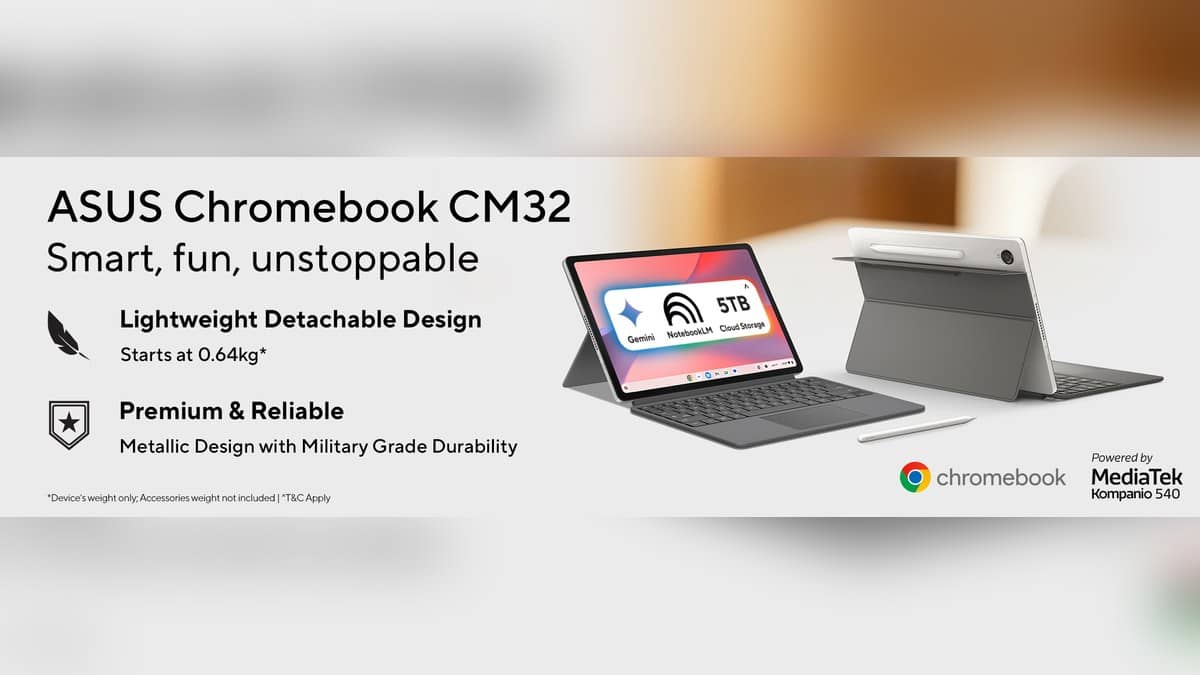
NEW DELHI: ASUS Chromebook CM32 Detachable CM3206 combines a 12.1-inch touchscreen with a 120Hz refresh-rate claim and stylus support. Its pen features can be used for notes, drawing and screen captures through ChromeOS. Owners should check the precise bundle first: ASUS's specification page marks the USI 2.0 ASUS Pen and stand cover as optional box contents.
| Item | Official detail |
|---|---|
| Screen | 12.1-inch touchscreen, 2560 x 1600 pixels, 16:10 |
| Display claims | 120Hz refresh rate, 600-nit brightness |
| Processor | MediaTek Kompanio 540 |
| Listed memory choices | 4GB or 8GB LPDDR5X |
| Listed local storage | 64GB or 128GB eMMC |
| Pen entry in specifications | USI 2.0 ASUS Pen, optional included item |
| ChromeOS pen tasks | Notes, drawings, captures, pointer and magnifier |
ASUS's India overview and technical specifications, together with Google's Chromebook stylus instructions, were checked on 2 November 2026. The overview promotes a magnetic, wirelessly charging stylus. The more cautious reading for an individual Indian order is to verify what the exact package contains before assuming every pictured accessory is supplied.
Start with the screen and the package
The CM32 is a detachable design, so pen input is central to how it can be used away from a keyboard. Its glossy screen has Corning Gorilla Glass, and ASUS specifies stylus support. The 16:10 panel shape also gives a different document canvas from a conventional widescreen Chromebook, which is relevant when viewing a reading page or sketch in tablet form.
The 120Hz claim describes the display's refresh capability. It does not, by itself, establish how quickly a particular drawing app will respond or how a game will perform. A student selecting a note-taking app needs to assess the writing experience and file handling as well as the screen specification. This report does not claim a measured pen-latency result.
ASUS lists the Kompanio 540 processor, memory up to 8GB and eMMC storage options up to 128GB. Those hardware limits remain relevant even when the screen feels like the main attraction. A sharp display and an accurate-looking drawing do not tell you how much local space remains for coursework, downloaded documents or media.
Open the ChromeOS pen tools
Google's instructions start from the Stylus control on the desktop. Open it and choose Create note to begin writing. The note-taking application can be changed through the stylus settings. That is useful when a class expects work in a particular app: setting the intended destination first avoids scattering handwritten material between different tools.
For a drawing, Google directs users to open Canvas from the Launcher. This gives a straightforward place to try strokes and sketches before introducing another application. On the CM32, it is also a practical way to separate a basic pen-input question from a problem affecting one downloaded app.
For a selected screen area, choose Capture region from the stylus tools, touch and hold, drag across the required area, then release. Capture screen provides a wider capture option. A teacher explaining a diagram or a student saving a section of an exercise can use those different actions deliberately instead of collecting an entire screen for every small reference.
Choose the tool that matches the task
The stylus menu also offers a laser-pointer mode and magnifying-glass mode. These serve different purposes from drawing permanent marks. During a presentation, the pointer can draw attention to a location; while examining detail, the magnifier can make part of the screen larger. The same tablet can therefore support explanation as well as handwriting.
Google's settings guidance includes showing or hiding the stylus tools in the shelf. For a user moving frequently between typing and tablet work, keeping that control accessible can make the workflow easier to remember. The important check is that the tool opens in the intended app and the resulting work is saved where it can be found later.
Google's recommended-app guide lists tools for notes, illustration and document work. App availability does not mean every tool behaves identically, or that each service includes the same features without a subscription. For coursework, the relevant test is whether the chosen app can create, save and share the required file, using the actual account and school workflow.
Related reading: our Laptop and tablet price guide, Lenovo Chromebook Duet 3 support runs to June 2031: check your schedule and ASUS Chromebook Plus CX34 updates run to June 2032.
Official sources: ASUS CM32 overview, India specifications, Google stylus instructions and recommended apps.