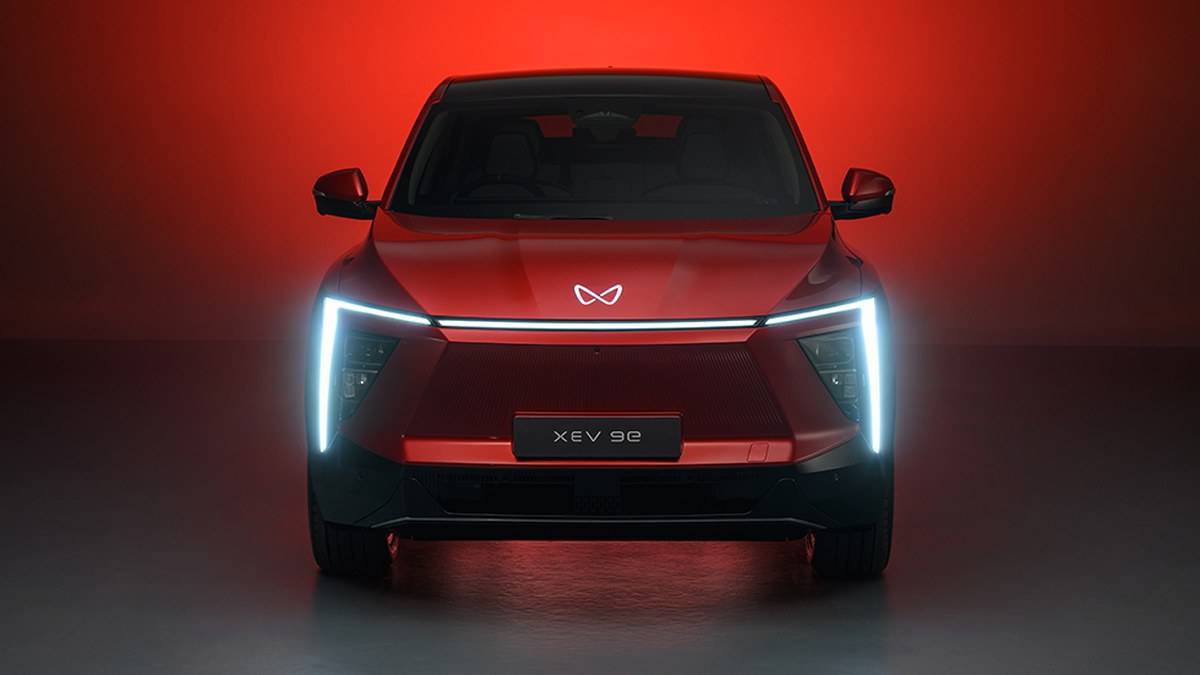
NEW DELHI: Mahindra's XEV 9e can connect two personal devices concurrently through its Bring Your Own Device function, where equipped. The owner's manual routes the connection through the vehicle's Wi-Fi hotspot and the Me4U app. Owners should check the available equipment and accessory mounting arrangement before treating a phone or tablet as a rear-seat entertainment screen.
| Item | What the official instructions establish |
|---|---|
| Concurrent connections | Two BYOD devices |
| Connection | Vehicle Wi-Fi hotspot and Me4U In-Car Experience |
| Functions | Passenger display mirroring and climate controls |
| Mount | Accessory, not standard equipment |
| Theatre mode | Centre display playback is restricted when driving |
Check the car before setting up the tablet
Start with the XEV 9e's own equipment list and the manual supplied with it. Mahindra marks BYOD as conditional equipment, while its specification brochure separates the app experience from the seat mounting provision. A software feature and a physical holder are separate things. Ask for a demonstration in the actual vehicle rather than assuming that a display in the showroom proves what comes with your car.
This distinction matters particularly in the XEV 9e because the passenger information display is part of the experience being shared. A family may want the rear passenger to choose entertainment without reaching towards the dashboard. Before paying for a holder, establish whether the intended job is simply supporting a tablet, charging it, or controlling the car's passenger-screen applications. Write those requirements separately on the accessory enquiry.
Make the connection while parked
The manual's sequence is Settings, Connectivity, Wi-Fi Hotspot. Connect the personal device using the displayed QR code or password, then enable In-car experience under that hotspot menu. Open Me4U on the device and select In-Car experience. The manual describes paths with and without a Me4U account. This local passenger function should therefore be distinguished from setting up the owner's wider connected-car account.
A useful setup method is to complete the process with one device before adding the other. That makes it easier to identify which screen is responding and which step remains incomplete. Keep the vehicle parked while doing this. Have the passenger handle the personal device and the owner check the centre display, so changes can be observed without anyone stretching between rows or trying to read several screens at once.
Use a simple checklist during the demonstration: hotspot visible, device connected, In-Car Experience enabled, app opened, intended screen available. If the process stops, note the last successful step. A statement such as 'the tablet joined Wi-Fi but the passenger display did not appear' is more useful for a service visit than 'the rear screen does not work'. It also avoids confusing connection setup with the separate question of whether a particular video service works.
Separate connection, content and mounting
A connection demonstration should include the content you actually intend to use. Ask the person demonstrating the system to show the relevant application and explain any separate account or data requirement. Do not regard a successful climate-control command as proof that an entertainment subscription has been activated. Equally, a video that will not play does not, by itself, tell you which part of the connection needs attention.
Mahindra's Me4U page presents a broader app covering charging, alerts and vehicle functions. For a household sharing this XEV 9e, decide who will manage that ownership account before handing a device around. Keep a short record of the passenger setup, separate from the owner's credentials. That makes future demonstrations easier without making the owner's account password part of the rear-seat entertainment routine.
Inspect the physical arrangement with the intended passenger seated normally. Check access to the charging lead, the viewing position and whether the attachment can be handled without disturbing the front occupant. Follow the accessory instructions for compatibility and installation. An attractive tablet position in an empty cabin is not enough to establish that the arrangement suits the people who will use the rear seats.
Treat the driving restriction as part of the feature
The manual disables theatre playback on the centre display during driving and warns against using the BYOD gripper while moving. Test the entertainment arrangement as a parked activity first. Discuss the movement-related restrictions during delivery rather than discovering them halfway through a trip. Do not try to defeat a restriction because the same video appeared on several screens during a stationary demonstration.
For separate ownership questions, read our XEV 9e charging-window explainer, the Mahindra charger and BaaS guide and the BE 6 software rollout report. Those subjects require their own checks; this setup concerns the XEV 9e passenger-device function.
Official sources: XEV 9e owner's manual, BYOD section, XEV 9e specification brochure and official Me4U page.