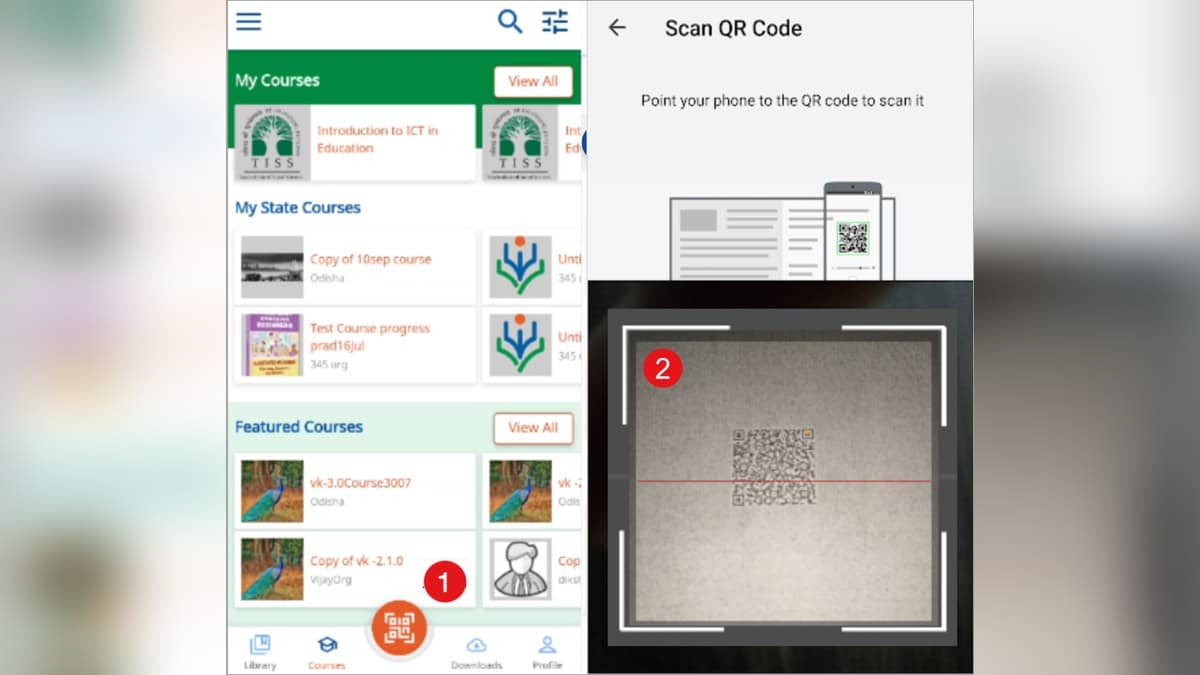
To open the learning material linked to a textbook on DIKSHA, use the app's QR scanner and point it at the printed code. DIKSHA's help page says both registered users and guests can scan a code. If the code links to several resources, the app shows a list; if it links to one, it opens that resource's details.
The printed code connects a physical lesson with digital material. It is not necessarily a link to a single PDF or the entire textbook. The official Understanding the QR Code guide explains that scan results can include courses, textbooks and individual pieces of content.
| Question | Official guidance |
|---|---|
| Must I register to scan? | Registered and guest users can scan |
| Why do I see a list? | More than one resource can be linked to a code |
| Is there an alternative to scanning? | The textbook's DIAL code can be searched on the portal |
| Can downloaded material work offline? | The help guide says a scan can display relevant content already downloaded |
How to scan a textbook QR code on DIKSHA
Open the app's home page and tap the QR scanner icon. Focus the scanner on the QR code printed in the textbook. Those are the two steps in the official scan guide. Keep the intended code in view rather than pointing at a whole page containing several codes, so you can connect the result with the lesson you meant to study.
After scanning, look at the result before starting it. A list of items is not an error: the guide explicitly allows several content items to be associated with one code. Choose the resource relevant to the chapter or activity. When only one item is linked, the app takes the user to its content details page instead.
The guide also says the scanner is available from the home page except while consuming content or editing profile details. If you are currently inside a resource or changing your profile, return to the home page to locate the scanner. The location described in the help documentation is a better starting point than searching through every course menu.
What is a DIKSHA DIAL code, and can you use it online?
The official Energised Textbooks guide says QR codes or DIAL codes printed in textbooks connect the physical book with digital learning assets. It gives searching for the DIAL code on the portal as an alternative way to find the textbook and related material.
Use the code printed for the intended textbook or lesson, and check the resulting title and context. A general search for the subject can return many useful resources, but it does not establish that the result is the particular item linked by the publisher's code. The printed identifier provides a more direct connection between the page in front of you and the digital resource.
The same guide says a textbook URL can also be shared to help users discover it. When a teacher shares such a link, confirm that it opens the expected DIKSHA resource and matches the learning task. A shared link and a scanned code are access routes; neither by itself explains what a pupil should complete for an assignment.
How to find a textbook when scanning is inconvenient
DIKSHA offers a library route as well. Its official app FAQ says to open Library to see textbooks and other content for a particular board, medium and class. Those profile choices matter because they help narrow the material presented to the learner.
Check all three settings rather than only the class. Two learners studying the same subject at the same level may use a different board or language medium. A familiar chapter name is useful, but the board, medium and grade give the surrounding context needed to choose the appropriate textbook.
The QR guide adds that, if board, medium and grade were not updated during registration, a scan can determine profile information. It also says relevant search results may be shown even for an invalid scan. For that reason, seeing a result should not be treated as proof that the exact intended code was successfully read. Compare the result with the printed lesson.
Does the DIKSHA QR code work without internet?
The help page says that, when the linked unit or content has already been downloaded, scanning its code can display the relevant content whether online or offline. The condition is important: it refers to material already present, rather than a promise that an unseen resource can be downloaded without a connection.
For a planned offline lesson, open the intended resource and check its availability before the session. This is a practical preparation step based on the downloaded-content condition. If a scan produces no usable lesson offline, first establish whether that exact material had been downloaded, instead of assuming the printed code itself stores the whole lesson.
Linked resources can change over time. The Energised Textbooks guide says content associated with a QR code can be updated dynamically while the same printed code remains usable. Teachers and learners should therefore check the current resource title and instructions, particularly when returning to a book after a long break.
For other learning routes, read our guides to NCERT PDF downloads and ePathshala, SWAYAM credit transfer rules and NPTEL certificate criteria. Opening textbook content is a learning activity. A course certificate or degree credit depends on the separate rules of the relevant programme.