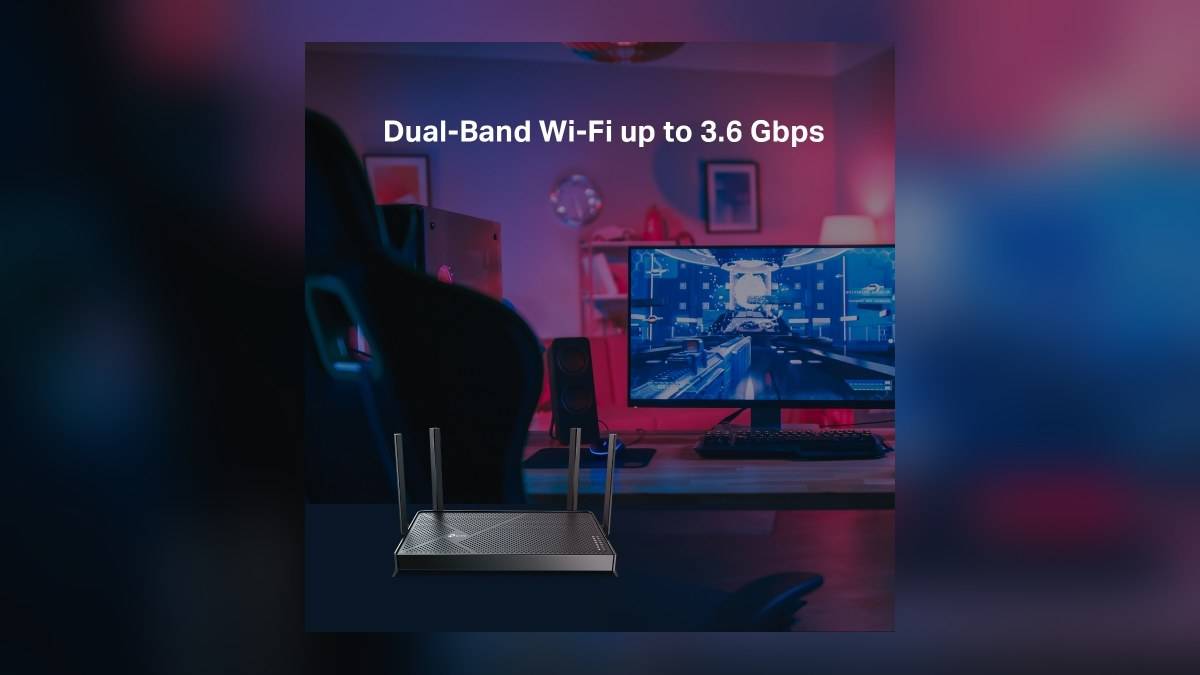
NEW DELHI: The TP-Link Archer BE230 has two 2.5 Gbps Ethernet ports, but they serve different jobs: one connects to the broadband equipment and one connects to a local device. Its other three LAN ports are Gigabit. That layout matters more to a home with a wired computer, television and camera recorder than the BE3600 badge alone.
| Archer BE230 feature | Official specification |
|---|---|
| Internet input | One 2.5 Gbps WAN port |
| Local connections | One 2.5 Gbps LAN and three 1 Gbps LAN ports |
| Wireless bands | 5 GHz and 2.4 GHz |
| Maximum signal rates | 2882 Mbps and 688 Mbps respectively |
| Storage connection | One USB 3.0 port |
| Operating modes | Router or access point |
Draw the cable route before changing settings
Start with a sketch of the existing installation. Mark the provider's incoming connection, its modem or fibre equipment, and the room where the BE230 will sit. Then mark which devices need a cable. The exercise separates a problem with the internet feed from a shortage of useful local connections.
The faster WAN socket does not turn every attached device into a multi-gigabit client. A computer placed on one of the Gigabit LAN sockets still uses that socket's connection rate. Equally, a faster LAN connection cannot supply an internet speed that the broadband service and upstream equipment do not support. TP-Link makes those dependencies explicit in its specifications.
Consider a household that wants a fast wired desktop while keeping a television and recorder attached by cable. The BE230's uneven port layout creates a clear allocation decision: identify the device that can actually use the faster local socket, then assign the remaining equipment. There is little purpose in reserving it for a device whose own Ethernet interface cannot match it.
The wireless badge describes a different ceiling
BE3600 is the wireless class, not the speed of an individual Ethernet port or a promise about a download. TP-Link lists separate maximum signal rates for the two bands. Its datasheet also warns that real throughput depends on clients, traffic, construction materials and the service provider. Treat the badge as a description of radio capability.
This distinction is useful when a smart home contains both newer computers and older connected appliances. The manufacturer's backwards compatibility claim does not mean every client gains every Wi-Fi 7 feature. Multi-Link Operation, for example, needs a compatible client. Record the capabilities of the devices that are actually used before attributing a slow connection to the router.
For background on how radio labels differ from everyday connection speeds, see our Archer AX10 band explainer. That is a separate model; its figures should not be transferred to the BE230.
Keep the provider's equipment in the plan
The BE230 supports access point mode as well as router mode. Those are different network roles. If the provider's device remains responsible for the home network, the access point option deserves examination before creating another routed network behind it. Check the provider's requirements and the instructions for the installed hardware rather than assuming a fibre cable can connect directly to this router.
Write down which device will handle the household's network settings. Keeping that responsibility clear makes later troubleshooting easier: a change to the provider's equipment and a change to the BE230 are not the same intervention. Photograph the cable arrangement before moving anything, and retain the original connection details.
Mesh expansion also needs a compatibility check. TP-Link advertises EasyMesh, but its footnote warns about firmware conflicts between vendors and features that can depend on later software. A mesh logo is a starting point for checking a combination, rather than evidence that any spare wireless device will join it successfully.
Our Deco X20 Ethernet backhaul guide and Tenda MW6 port planning article explain related wiring questions for those systems. Their connection layouts differ from this Archer.
Check the hardware label and service boundaries
Before applying instructions or downloading software, match the unit's hardware version to TP-Link's India support page. The support site asks users to select that version and notes that regional availability varies. Retain that identifier with the home network notes so a later firmware check starts from the correct device.
The USB socket and HomeShield service should be evaluated separately from the Ethernet upgrade. TP-Link documents storage sharing through USB, while advanced HomeShield functions require payment. Neither feature changes the number of fast local sockets. For this model, a useful installation plan names the upstream equipment, the device assigned to the faster LAN port and the role the BE230 will perform.
Official sources: Archer BE230 India specifications, official datasheet and India support selector.