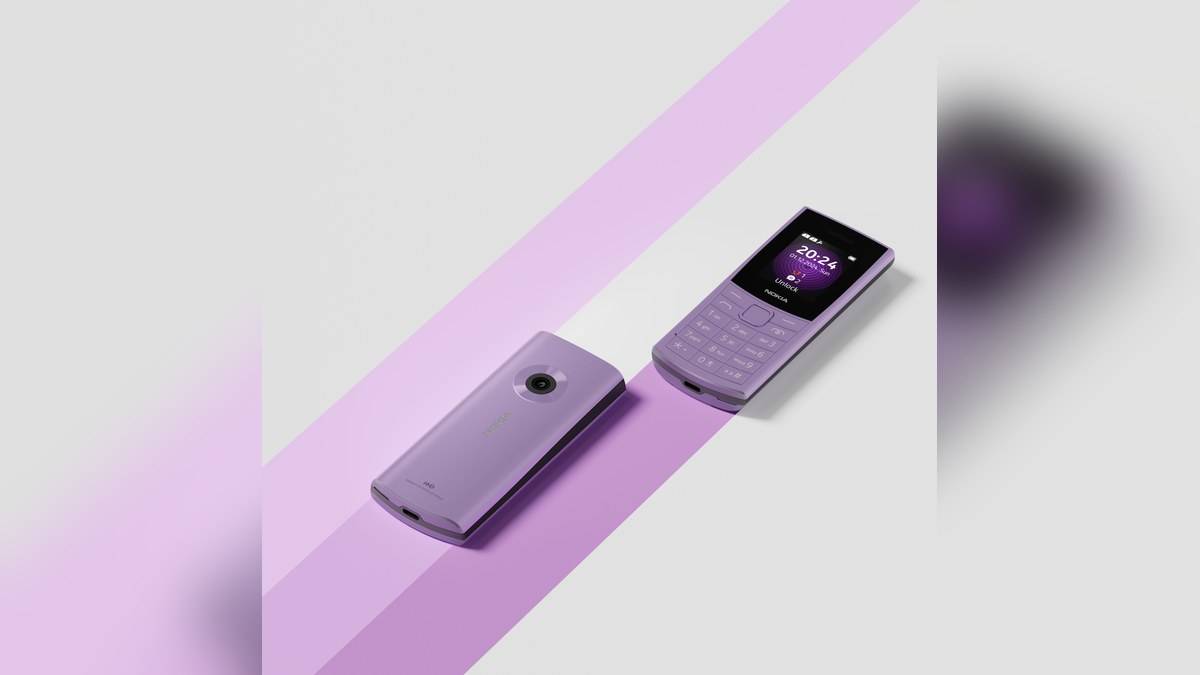
NEW DELHI: Nokia 110 4G owners can make its 1.77-inch display easier to navigate by selecting a Zoomed menu and Large text. HMD documents these as separate settings, so changing the menu layout alone is not the complete text-size adjustment. The India specification page identifies TA-1664, a model also covered by the Nokia 110 4G (2023) user guide.
| Item | Verified detail |
|---|---|
| India specification model | TA-1664 |
| Display | 1.77 inches, QQVGA |
| Enlarged menu | Settings > Display > Menu display > Zoomed |
| Larger text | Settings > Display > Text size > Large |
| Normal menu layout | Standard |
| Quick-access list | Go to settings, under Phone settings |
Match the model, then adjust the view
The naming needs care. HMD's product page calls this Nokia 110 4G 2nd Edition, while the relevant manual is headed Nokia 110 4G (2023). The manual explicitly covers TA-1664 alongside TA-1556. That shared model code provides the link between the current India specification and the instructions, rather than relying on a similar-looking product name.
Start with the phone in the hands of the person who will use it. A relative may prefer seeing several menu icons together, while the owner may find that crowded. On a display this small, a setup session should establish whether the user can recognise a selected feature and move back from it without help.
Show a single menu item
Open Menu, choose Settings, then Display and Menu display. Select Zoomed. HMD says this presents one app at a time, with up and down used to move through the choices. If that presentation proves inconvenient, return to the same menu and select Standard to restore the normal layout.
This is a change in how the menu is presented. It does not enlarge the physical display or turn the phone into a touchscreen. The useful question is whether showing fewer choices makes the next action clearer. Let the owner try finding a familiar feature before deciding which presentation to leave enabled.
There is a trade-off to test in person: a single-item presentation simplifies what is visible, but the owner must still move through the menu to reach another feature. Somebody already comfortable recognising several icons may prefer Standard. The official setting makes either arrangement reversible without treating the phone as faulty or replacing the handset.
Increase text independently
For text, follow Menu, Settings, Display, Text size and Large. HMD lists this separately from Menu display. Make the adjustment, then ask the owner to look at the text they normally use. Do not assume that finding a larger menu item establishes that every reading task is comfortable.
The distinction is useful when setting up the handset remotely with a family member. Describe the actual setting being changed: Menu display for the arrangement, Text size for lettering. That gives both people a clear point to check later if the owner says the phone looks different, rather than an imprecise instruction to increase everything.
Arrange shortcuts around the owner's routine
The manual also explains how to customise the Go to list. Under Menu, open Settings, Phone settings and Go to settings. Choose Select options, highlight each desired shortcut and use Mark. Finish with Done and Yes to save. Select the entries the owner recognises, rather than marking every available item.
To change their order, select Organise, highlight an item and choose Move, then its new position. Save the revised arrangement when leaving. Putting a familiar action where the owner expects it can be as useful as increasing text. Write down the final arrangement if another family member will help with the same handset later.
Complete the exercise with an ordinary call. The manual directs users to enter a number, press the call key and choose a SIM if prompted. The end key finishes the call. This checks the basic task the owner needs, rather than ending setup immediately after a display option has been changed.
Leave the handset in the chosen view after the owner has tried it, then explain how to return to Standard. A helper who resets the arrangement to their own preference can undo the benefit of the session. The final configuration should reflect what the owner can recognise and operate consistently.
It also helps to describe buttons by position while demonstrating them, rather than relying only on words in a written guide. Ask the owner to show the next action back to you. That establishes whether the difficulty is reading the screen, recognising the selected item or remembering the route through the menu.
Keep expectations tied to this handset
The product page also advertises English phone-talker assistance and support for 13 languages. Those statements should not be read as a promise that every spoken function works in every supported language. For this setup, the verified adjustments are the Zoomed menu, Large text and the editable shortcut list described in the manual.
Related coverage includes our Nokia 110 4G price report, Nokia 6310 accessibility explainer and Nokia 2660 Flip SOS guide. Each concerns a separate task or model.
Official sources: HMD's accessibility instructions, shortcut guide and India specifications.