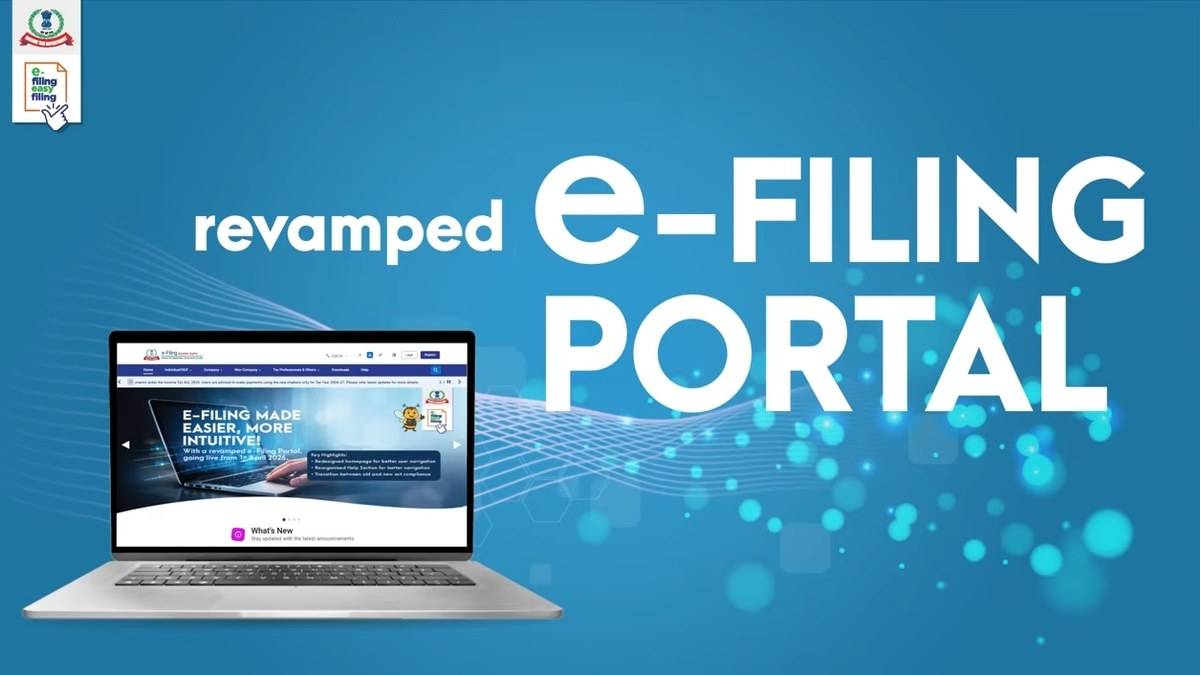
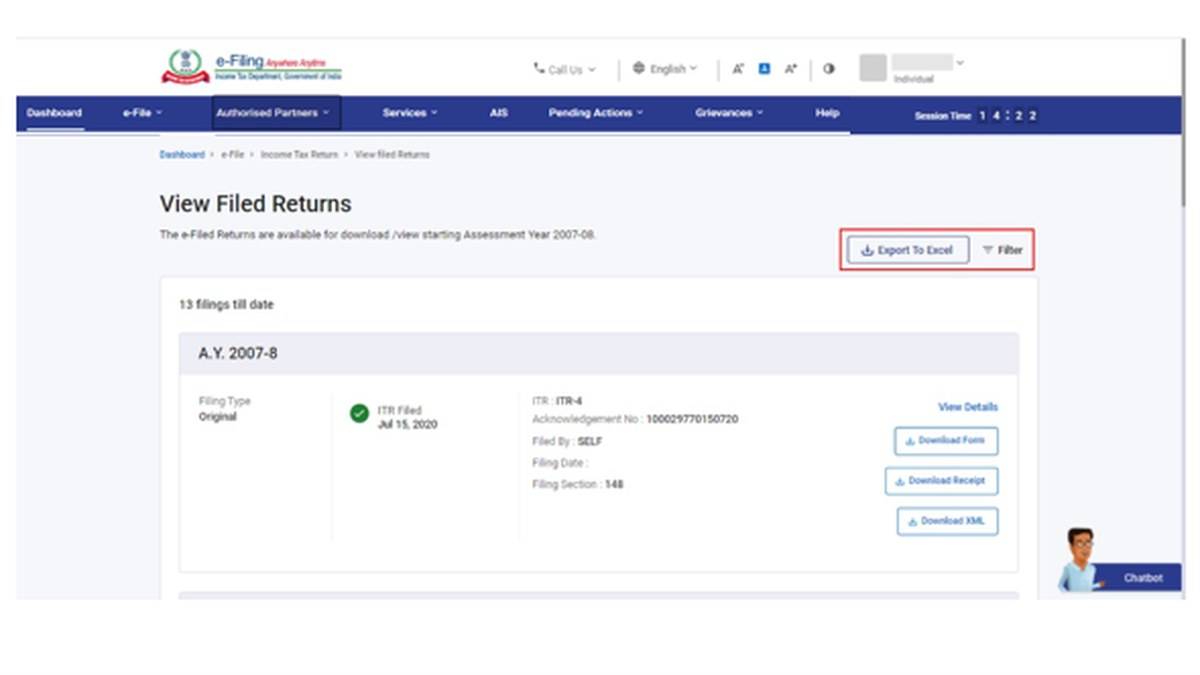
To download a filed ITR, sign in to the Income Tax Department's e-Filing portal and open e-File > Income Tax Returns > View Filed Returns. Select the relevant assessment year and the document you need. The portal provides the ITR-V acknowledgement, complete return PDF, uploaded JSON where applicable, and intimation order. These are separate records, so asking for an “ITR copy” does not always identify the right file.
| Document | What to select it for |
|---|---|
| ITR-V acknowledgement | The acknowledgement associated with the submitted return |
| Complete ITR PDF | The full return form you filed |
| Uploaded JSON | The return data uploaded through the offline utility |
| Intimation order | The department's processing communication, when available |
How to download ITR online from View Filed Returns
The department's Know your ITR Status user manual requires a registered account with a valid user ID and password for the signed-in service, plus at least one return already filed on the portal. An unsubmitted draft is not a filed return. If you only prepared a return, first establish whether submission actually took place.
- Open the official e-Filing portal and sign in using your own valid credentials.
- Choose e-File, then Income Tax Returns, then View Filed Returns.
- Find the assessment year you require. Use Filter to narrow the records by assessment year or filing type.
- Check the selected return record before using its download options.
- Choose the acknowledgement, full ITR form, uploaded JSON or intimation order as required and available.
- Open the saved file and confirm that it belongs to the return you selected.
The manual places the download options on the right side of the return record. It also provides Export to Excel for the returns data. An exported list can help organise your records, but it is a different output from the complete ITR form. If someone requests the full return, an Excel list of filings may leave that request unanswered.
How to download ITR-V acknowledgement
The official ITR Status FAQs identify the route as e-File > Income Tax Returns > View Filed Returns > Download Receipt. They also say that the acknowledgement number is available in the ITR-V sent to your registered email after filing.
If you need the full return rather than its acknowledgement, use the form download option for that record. Keep the two files clearly named. A practical naming pattern is the assessment year followed by “Acknowledgement” or “Full ITR”. Open each file before sharing it so you can confirm that you have not sent the receipt when the detailed form was requested.
The department says past filings as well as current filings can be viewed through this service. For older documents, filter by the required assessment year rather than assuming the first visible entry is the relevant one. Where several records appear, compare the filing type and details before saving a copy. Repeatedly downloading the first result will not resolve a year or record mismatch.
Can you download an ITR without logging in?
The FAQs distinguish the public status check from the additional information available after sign-in. You can check status before logging in using a valid acknowledgement number and mobile number, but downloads of the return or intimation are part of the additional signed-in information. A PAN alone is not the complete set of inputs specified for the public status route.
This distinction matters when an online search promises an “ITR download by PAN”. The official route for obtaining your return copy uses your e-Filing account. If you have the acknowledgement but only want to establish whether the return has progressed, the status check answers that narrower question. It should not be confused with retrieving the detailed return document.
Where is Download Filed Return on the dashboard?
The department's dashboard user manual describes another entry point for the current assessment year: Download Filed Return under the filing status section. This can download the acknowledgement of the filed form or the entire form. View Filed Returns remains the useful route when you need to search across filing records.
The same dashboard guide separates the return's lifecycle into filing, verification, processing and completion. That separation explains why obtaining a PDF does not, by itself, establish that every stage has finished. Read the status associated with the record as well as the saved document.
The ITR Status FAQs define “Successfully e-Verified / Verified” as a return that has been verified but has not yet been processed. “Processed” indicates processing has occurred. If the status instead shows a pending action, inspect the record rather than treating a successful download as completion of that action.
What should you check after saving the PDF?
Check the assessment year, taxpayer details and type of document before using the copy. Retain the acknowledgement alongside the full return so you can trace the record later. If you are looking into a processing discrepancy, the intimation is also relevant. Our separate guide explains the ITR rectification request process.
A filed return is also distinct from the Annual Information Statement and TIS, which have their own download and feedback process. For an expected payment, use the income tax refund status guide. Saving an ITR copy gives you the filing document; those separate records answer questions about reported information and refund progress.