
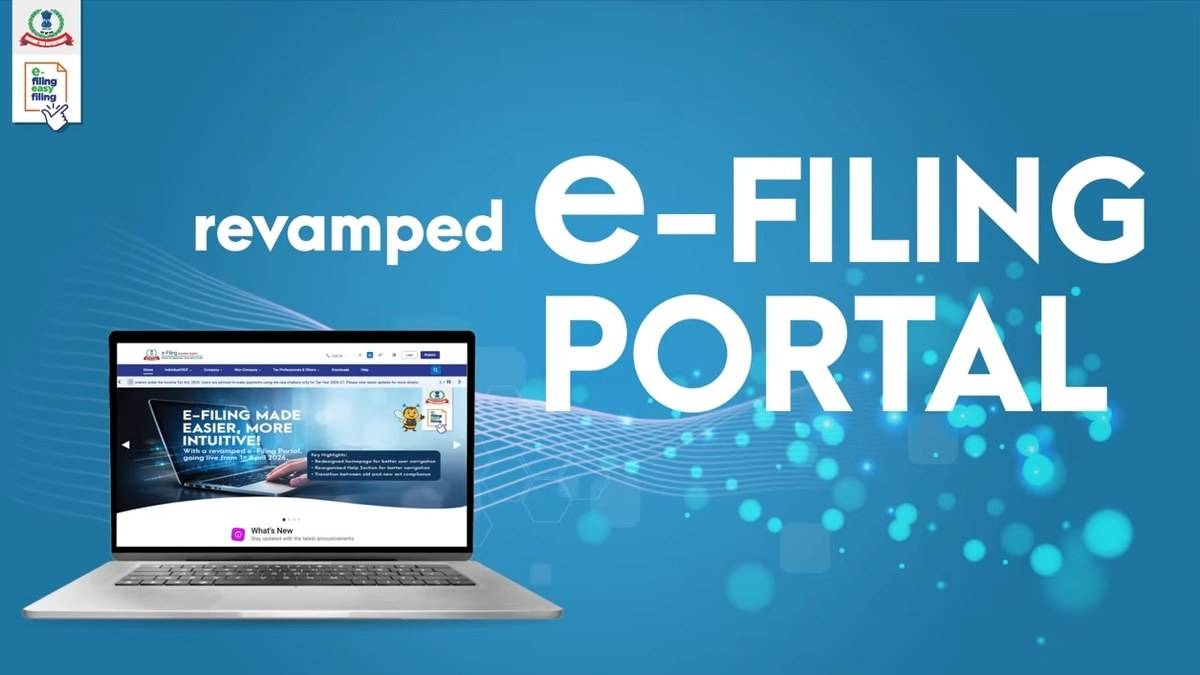
To download your Annual Information Statement, sign in to the Income Tax Department's e-filing portal, open Annual Information Statement on the dashboard, select Proceed and then open the AIS tile. The department also documents an alternative route through e-File, Income Tax Return and View AIS. AIS can be downloaded in PDF, JSON or CSV format. Read the underlying entries before treating the statement as a complete record of your income.
| Question | Official position |
|---|---|
| Where to start | Income Tax Department e-filing portal |
| Download formats | PDF, JSON and CSV |
| Related summary | Taxpayer Information Summary, or TIS |
| Incorrect entry | Use the feedback option against the relevant information |
The department's current AIS FAQ explains both the access route and an important limitation: the statement contains information presently available with the department. Transactions may exist outside it. A missing entry therefore does not establish that the associated income can be left out of a return.
How to download AIS from the income tax portal
Start from the official portal rather than a link in an unsolicited message. After signing in, look for the Annual Information Statement menu on the dashboard. Select Proceed to enter the AIS portal and use the AIS tile to view the statement. If that dashboard option is difficult to locate, the FAQ gives the alternative e-File route described above.
Check that the statement relates to the financial period you are reviewing before saving it. Keep the file with the records for that period, alongside salary statements, bank interest certificates and relevant transaction documents. A downloaded statement is a record to reconcile; it is not confirmation that a return has been filed or verified.
The choice of format depends on the task. PDF is convenient for reading and retaining a copy. CSV is useful when reviewing rows in a spreadsheet, while JSON is structured data. The official FAQ confirms these three formats. It does not make every file a ready-to-upload tax return, so avoid confusing a statement download with the separate return preparation process.
What is the difference between AIS, TIS and Form 26AS?
AIS contains general information in Part A, including PAN, masked Aadhaar, name, date of birth or incorporation, contact details and address. Part B covers reported financial and tax information. Reviewing the identity section first helps establish that the record you are examining belongs to the correct taxpayer.
The financial sections include tax deducted or collected at source, information received through statements of financial transactions, and tax payments such as advance tax and self-assessment tax. Other information can include salary data, interest on refunds and outward foreign remittance or currency purchase information. These categories describe the source of information; they do not by themselves determine the tax treatment of every entry.
TIS is a category-wise summary within AIS. It distinguishes values processed by the system from values accepted by the taxpayer or confirmed by the source. The FAQ says processing includes deduplication under predefined rules. Accepted or confirmed information may be used to prefill a return where applicable. Read the detail behind an aggregate when a total looks unfamiliar.
Form 26AS has a narrower role in the current FAQ. From assessment year 2023-24 onward, the Annual Tax Statement available on TRACES displays TDS and TCS data. Other taxpayer information is available in AIS. Comparing a bank certificate only with Form 26AS can therefore leave out the wider information trail that AIS provides.
How to give feedback on an incorrect AIS entry
Open the relevant information under TDS/TCS, SFT or Other Information. The FAQ directs users to the option in the Feedback column, which opens the Add Feedback screen. Choose the relevant response, enter the requested details and submit. Work from the underlying document so the response addresses the actual discrepancy rather than an unexplained difference in totals.
After successful submission, AIS shows the feedback and the modified value alongside the reported value. The activity history is updated, and an acknowledgement receipt becomes available. The department also says confirmation is sent by email and SMS. Keep the acknowledgement with the supporting record, especially if the source later supplies a correction.
Consider an illustrative reconciliation: a bank statement shows one interest credit but the AIS display appears to contain two related reports. Do not automatically count both as separate income or automatically delete one. Compare the source, period and transaction details, then use the appropriate feedback option if the reporting is incorrect. The example illustrates a checking method, not a finding about any particular bank.
The FAQ also allows users to review Activity History, where each activity has an identifier, date and description. A consolidated feedback PDF is available for feedback other than entries marked correct. These records help distinguish what the source reported from what you have subsequently challenged.
For the next stage, read our guides to old and new tax regime calculations, deductions under the old regime and how fixed deposit interest is calculated. Those explain different questions. The immediate AIS task is to reconcile the information, retain evidence and ensure the return reports complete and accurate income.