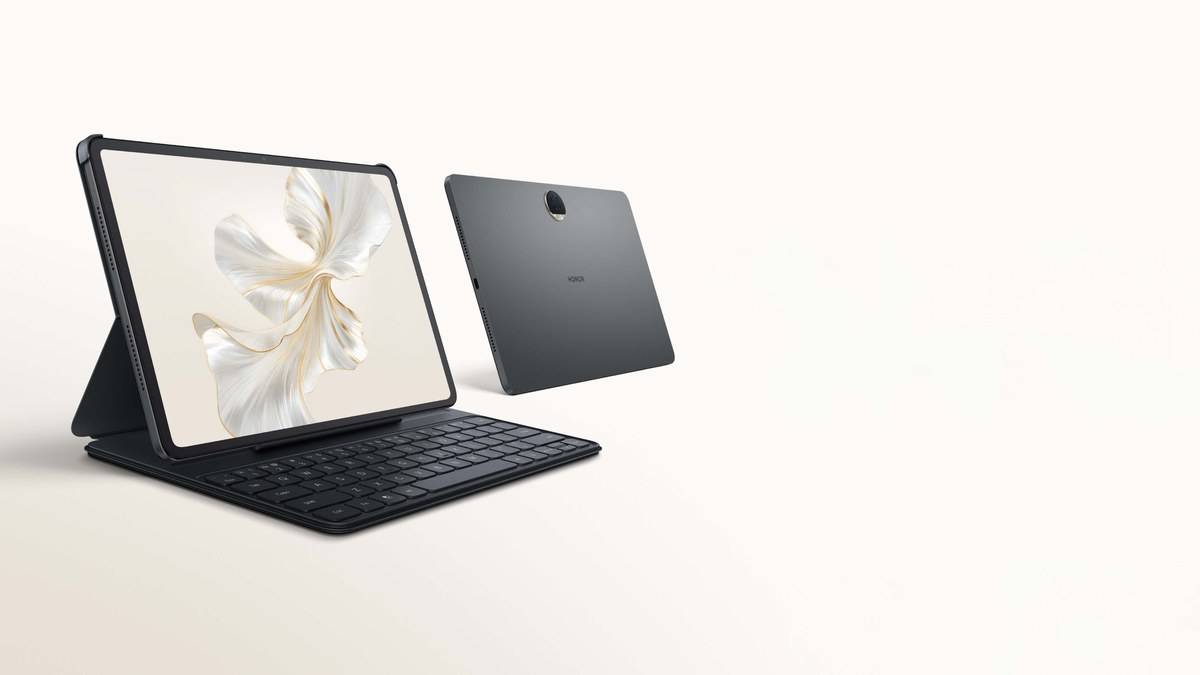
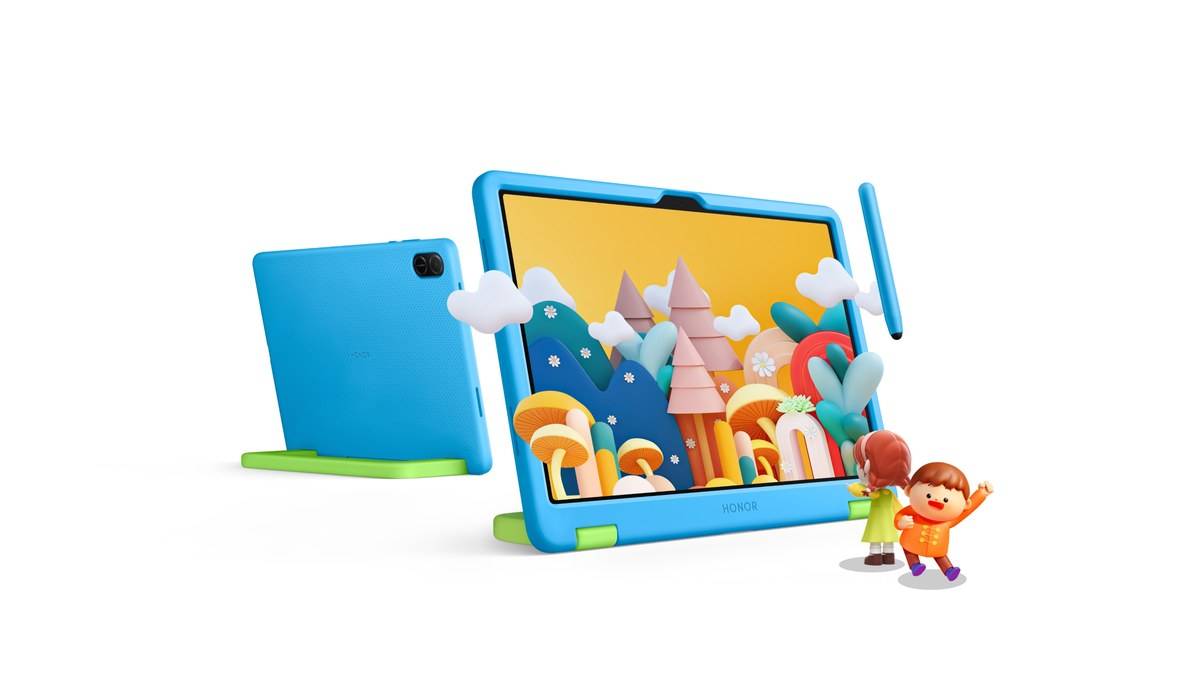
NEW DELHI: Honor Pad X8a Kids Edition combines an up-to-90Hz display with parental-control tools, but a parent still needs to configure the child's account and screen-time rules. Honor lists Family Link as pre-installed. Google's current instructions provide the account-supervision and daily-limit steps, which are separate from choosing the tablet's display or using its protective case.
| Setup detail | What the official pages establish |
|---|---|
| Tablet screen | 11-inch; maximum 90Hz, depending on the app |
| Parental tool | Pre-installed Google Family Link |
| Starting point for existing accounts | Settings, Google, All services, Kids & Family, Parental controls |
| Daily-limit controls | Family Link, Screen time, Time limits |
| Case positions | Sketching, handle and video-watching modes |
Prepare the account before setting a timetable
For supervision of an existing Google Account, Google says the child and their device must be nearby. The child must agree to supervision and live in the same country as the parent. Google's requirements and consent process depend on the account's circumstances, so follow the prompts for that account rather than copying another family's completed setup.
On the child's Android device, Google's published route starts in Settings. Open Google, choose All services and find Parental controls under Kids & Family. Select Let's do this and choose the account to supervise. A child below the applicable minimum age may first need the separate parental-consent process linked in Google's help page.
On this Honor tablet, the value of doing the account work early is practical. The blue case and child-focused presentation can make it feel ready to hand over as soon as it leaves the box. Account supervision is a separate job. Finish it while you can check the tablet and the parent's device together, before relying on a remote restriction.
Set a daily limit and inspect the whole week
In the parent's Family Link app, select the child, then open Screen time and Time limits. Turn on Daily limit, choose Weekly schedule and select a day. Enter the allowed screen time. Google also provides an option to apply the limit across the week, followed by Done, instead of repeating the same entry for each day.
A school day and a day spent travelling need not have identical rules. The useful setup decision is to make the schedule deliberate and understandable to the child. Review the weekly view after saving it, particularly if the tablet will be used by another caregiver who was not present during setup. A written household rule can help keep that handover consistent.
Google says the child receives notifications when screen-time rules are first set and when the device is about to lock. Its help page also explains that designated Unlimited time apps can remain usable when that option is enabled. Review those exceptions before assuming that reaching the daily limit will close access to everything in the same way.
Check an ordinary school task before relying on the rules
Try the arrangement with the actual learning material the child uses, while both devices are available. Confirm that the intended account is supervised and inspect the saved schedule from the parent's app. Start with an ordinary lesson or drawing activity so you can check both the child's access and your own ability to inspect the saved restrictions.
For a family using the Pad X8a Kids Edition for both lessons and cartoons, this separates the education plan from the entertainment plan. Ask which activity should be possible at each point in the day, then inspect whether the configured rules match that intention. The same tablet can serve both purposes, but its child-friendly packaging does not make that decision for the parent.
What the display and case add
Honor's refresh-rate figure is a ceiling, with the actual rate varying between app interfaces. It describes the screen's behaviour, while Family Link describes supervision. The protective case adds a different physical function: its supported positions let the child hold the tablet, prop it up for viewing or place it for sketching. These are complementary parts of the product, each requiring its own check.
Before leaving the tablet on a study table, choose the case position that suits the activity and make sure the child can see the content clearly. Check the app and timetable again when the routine changes. A display specification cannot tell a parent whether a lesson is accessible under the saved rules, and a saved rule cannot position the screen for comfortable reading.
For related study-device details, read our Laptop and tablet price guide, Honor Pad 9 memory: how 8GB RAM becomes a 16GB claim and Lenovo Tab P12 study workspace: 4 split-screen apps, 5 floating windows.
Official sources: Honor Pad X8a Kids Edition; Google's account-supervision instructions and screen-time instructions.