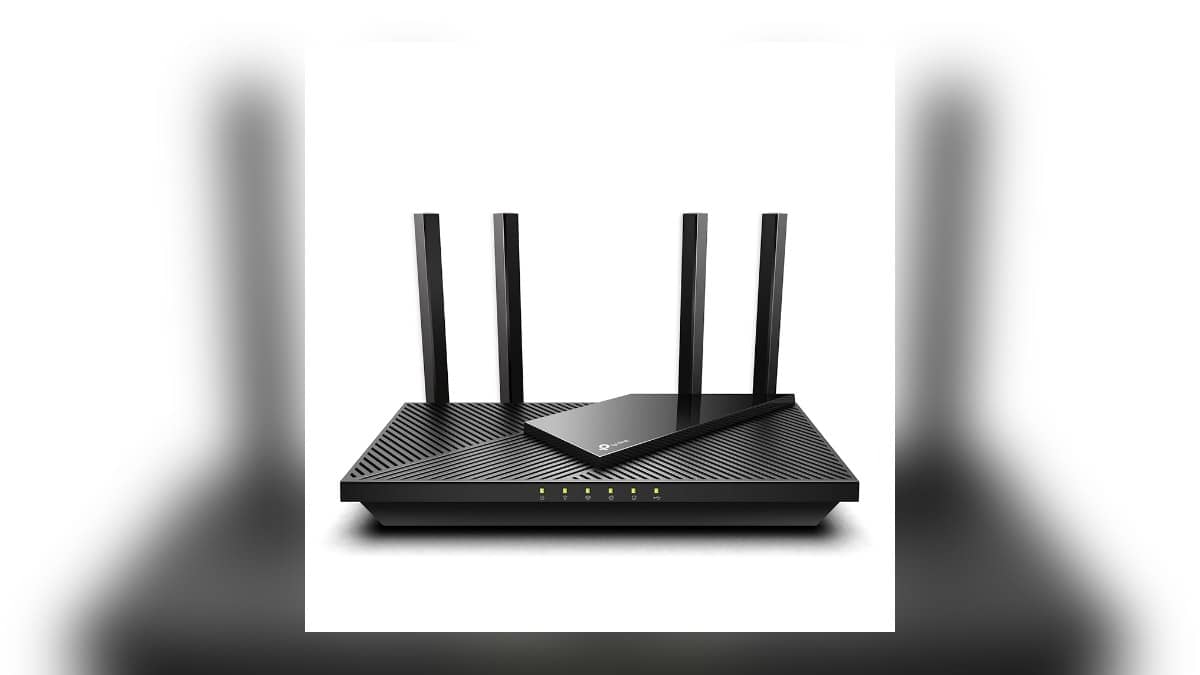
NEW DELHI: TP-Link's Archer AX55 has a USB 3.0 port that can share a connected storage drive across the home network. Its India specification lists NTFS, exFAT, HFS+ and FAT32 support, with Samba, FTP, media-server and Apple Time Machine functions. Start by confirming that the router recognises the drive, then configure authenticated access.
| Archer AX55 feature | Official specification |
|---|---|
| USB connection | 1 USB 3.0 port |
| Partition formats | NTFS, exFAT, HFS+, FAT32 |
| Storage services | Samba server, FTP server, media server, Apple Time Machine |
| Wired network | 1 Gigabit WAN port, 4 Gigabit LAN ports |
| Wireless bands | 5 GHz and 2.4 GHz Wi-Fi 6 |
Give the USB port a specific job
A router drive can provide a common place for files that family members need on different computers. With the AX55, this is an additional function alongside broadband routing and Wi-Fi. It is worth deciding which files belong there before connecting a disk that already contains unrelated personal material.
The separate media-server and Samba-server entries matter. Browsing playable media and opening a shared folder are different tasks. Decide whether the household needs a media library, ordinary file access or the listed Time Machine function, then inspect the corresponding controls. A visible media device does not by itself prove that file sharing is working.
Think of an initial test as a small household project. Choose a folder containing disposable sample files, identify the computers that should reach it and decide who needs access. This gives you a clear result to check without making the entire contents of an existing drive the experiment.
Check detection before the computer connection
TP-Link's general USB-access guide says to connect the drive, connect a computer to the router by Wi-Fi or Ethernet, and open tplinkwifi.net in a browser. Use the router's administrator password, then inspect the USB storage status. Its illustrated route is Advanced, USB, USB Storage Device; labels can differ between interfaces.
The same guide recommends Secure Sharing so access requires a login. Configure that before distributing the share to other users. Keep the sharing details with whoever manages the home network, rather than treating possession of the Wi-Fi password as the only decision about access to family documents.
If the router does not detect the disk, TP-Link's troubleshooting page says to compare its file system with the specific model's supported formats. It also cautions that compatibility with external drive enclosures, especially multi-bay models, is not guaranteed. That limits what can be inferred from the presence of a standard USB connector.
Open the share from the right place
For local Windows access, the official guide uses the router's network path in File Explorer and the configured sharing credentials. On a Mac, it uses Finder's Go menu, Connect to Server, and an SMB address such as smb://tplinkwifi.net. If the router's LAN address has been changed, use its current address.
Keep the first check on the home network. Open the test folder from the intended computer and confirm that the expected files appear. Then repeat from another authorised computer. These checks help distinguish a successful router configuration from a result that works on only the machine used to set it up.
The troubleshooting guide distinguishes TP-SHARE file access from a similarly named media-sharing entry. It also describes a separate problem after a USB-sharing password change: Windows can retain the old credentials. Its remedy is to remove the relevant saved entry in Windows Credentials, restart the computer and connect with the updated password.
Set expectations for this particular router
The USB 3.0 label identifies the AX55's port, not a measured file-transfer result for your disk, enclosure and computer. Avoid diagnosing performance from that label alone. Keep notes on whether the test used Wi-Fi or Ethernet and which computer performed it, so any later comparison refers to the same arrangement.
For the wider connected-home setup, our Airtel Xstream Fiber guide covers the broadband side, while the SmartThings local-control explainer and Qubo smart plug comparison examine other devices sharing that network.
Official sources: Archer AX55 India specifications, USB access instructions and USB troubleshooting guidance.