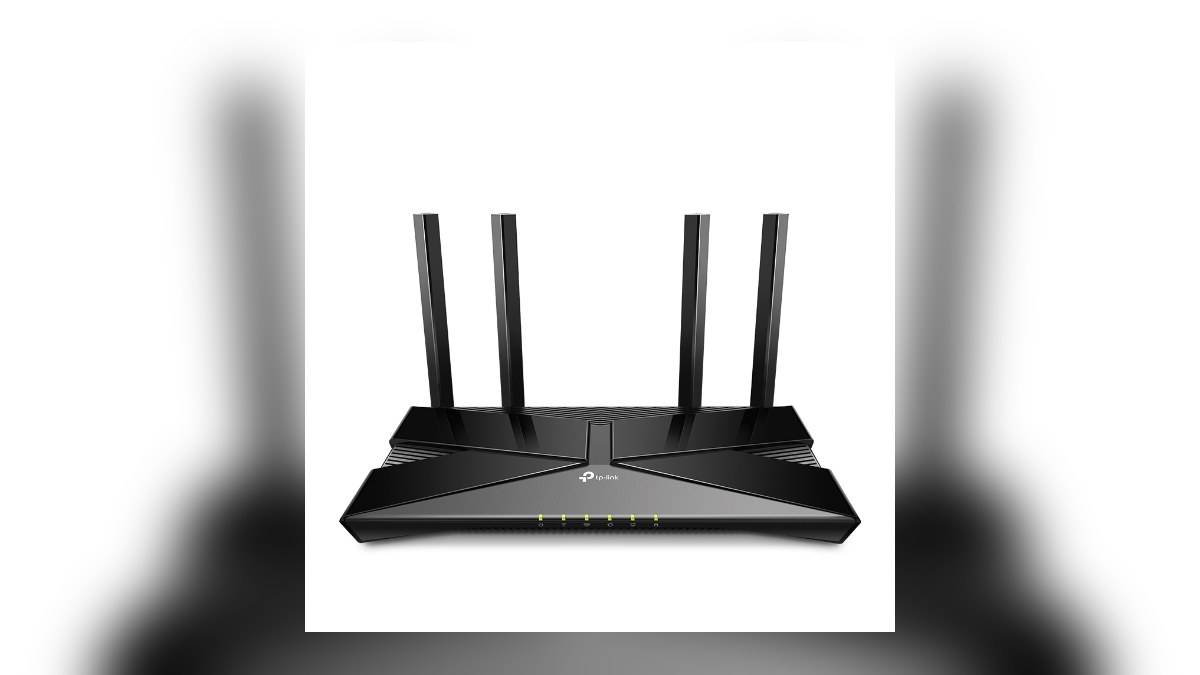
NEW DELHI: TP-Link's India specifications for Archer AX53 list VPN Client support with an explicit V2 qualification. Before trying to route a smart television through the router's VPN connection, check the hardware version and whether the relevant menu exists on your unit. The official setup guide also requires selecting the devices that will use the connection.
| Item | Official detail |
|---|---|
| Model | Archer AX53, AX3000 Wi-Fi 6 router |
| India VPN Client specification | OpenVPN, PPTP and WireGuard; Only V2 Support note |
| Configuration menu | Advanced > VPN Client |
| Routing choice | Selected devices use the VPN |
| Required information | Provider credentials and/or configuration file |
The hardware suffix comes before the instructions
A household may want the television to use a router-managed connection because it does not want to configure software on that device. That is the scenario TP-Link's VPN Client instructions address: the router establishes the connection and routes selected home devices through it. Start by establishing whether your AX53 has that capability.
The model name alone is an incomplete check. The India download selector exposes separate hardware choices, including V1, V2 and V2.80, and warns that hardware availability varies by region. Read the version on your own unit and use the corresponding regional support information instead of treating a search result for AX53 as a universal instruction.
The product table distinguishes VPN Server from VPN Client. For the smart-TV scenario described here, look at the client entry. A reference to server support elsewhere in the specifications does not, by itself, confirm the separate client function or its availability on the unit you own.
Gather the profile before changing the television connection
TP-Link's general guide requires the connection details supplied by the VPN provider. For OpenVPN, it calls for the provider's configuration file and any required username and password. The guide covers several router models, so its full list of protocols should not replace the narrower compatibility check for your AX53 hardware.
Before making changes, write down which television or other household device you intend to route. Keep the aim specific. If the task concerns a television, begin with that endpoint rather than selecting every device visible on the network. This is an editorial testing suggestion to make the result easier to assess.
For related background, our TV and projector price guide examines another router's radio specification. A Wi-Fi signal rate and a configured VPN connection describe different parts of a home setup. Keep those questions separate when deciding which feature you need to investigate and test on your AX53.
Use the client menu and select the endpoint
The official workflow uses the router's web management interface. Once connected to your own router and signed in, open Advanced, then VPN Client, enable the feature and save. Add a server profile, give it a recognisable description and enter or upload the information appropriate to the supported protocol you have chosen.
TP-Link then directs owners to the Device List. Add the devices intended to use that VPN connection and save the settings. The guide states that devices outside the selected list continue using the normal internet connection. Adding a server profile and selecting the television are therefore separate parts of the published process.
When the household has several similar device names, establish which entry belongs to the television before applying the rule. Use the router's available device information and the television's own network details to identify it. Guessing from a vague name makes a later playback test difficult to interpret.
Verify the intended result without treating Wi-Fi speed as VPN speed
The AX53's AX3000 designation describes its wireless class. It is not an official VPN throughput result, and TP-Link's setup page does not provide a verified streaming speed for this television scenario. This report therefore gives no claim that enabling the client will produce a particular internet rate or improve playback.
After configuration, test the selected television and a device deliberately left outside the VPN list. Check whether the intended separation is reflected in the router's settings and whether the usual household tasks still work. Record what changed so that an unsuccessful test can be explained without repeatedly replacing profiles or altering unrelated wireless settings.
If you are instead extending room coverage, see our Archer AX10 Wi-Fi explained: 1201 Mbps and 300 Mbps bands and Count Tenda MW6's 2 Gigabit ports before planning a mesh network. For AX53 VPN Client use, keep the verification focused on its hardware version, supported menu, provider profile and selected device. Those checks answer the setup question more directly than the wireless number printed on the box.
Official sources: Product information, Official supporting information, Official supporting information, Official supporting information.