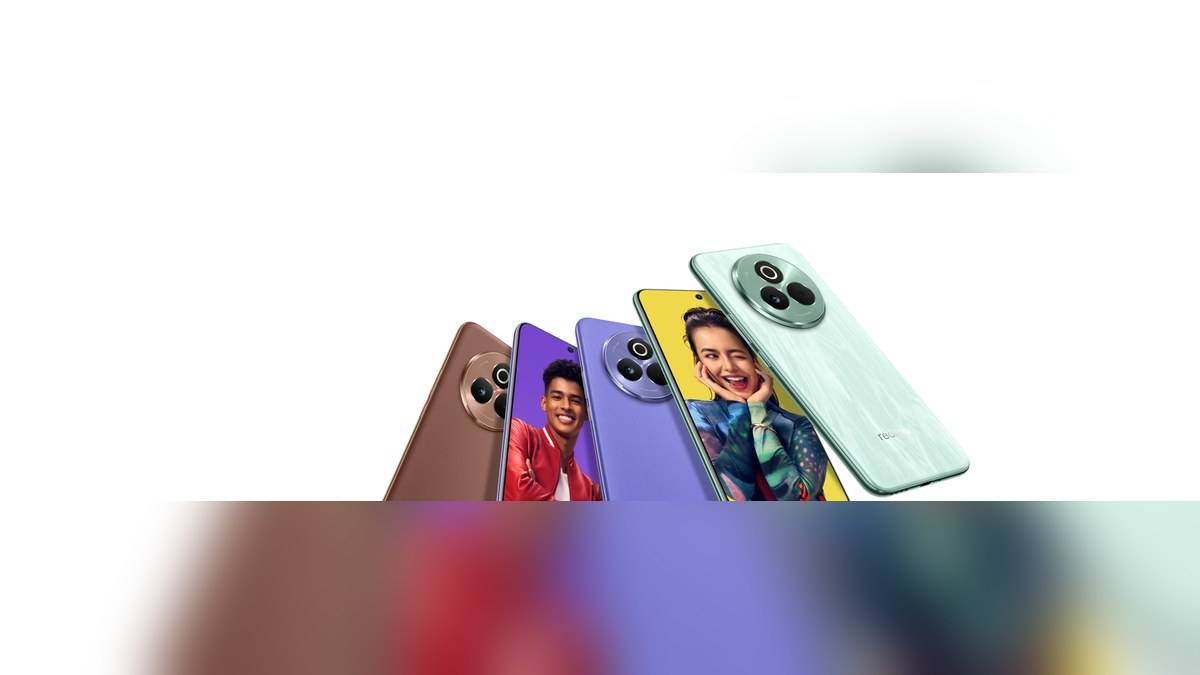
NEW DELHI: The realme P3 Pro 5G records rear-camera 4K video at 30fps, while 1080p offers 30fps and 60fps choices, according to its India specifications. Slow motion is separately listed at 1080p and 120fps. These are different recording modes, so a high frame-rate claim should always be read alongside its resolution and mode.
| Recording option | Official P3 Pro specification |
|---|---|
| Rear 4K | 30fps |
| Rear 1080p | 30fps or 60fps |
| Rear 720p | 30fps or 60fps |
| Slow motion | 1080p at 120fps |
| Dual-view video | 1080p at 30fps |
| Front default recording | 1080p at 30fps with Retouch on; 720p at 30fps also listed |
Choose the recording job before the biggest number
A parent recording a stage performance and a student making a talking-head assignment may need quite different files. Before opening the camera, decide whether the priority is resolution, the available higher normal-video frame rate, or a specialist effect. The specification table provides the supported combinations; it does not select the right one for your project.
For this phone, asking for both the highest listed normal-video resolution and the higher 1080p frame-rate option would combine separate entries. The official page does not list 4K recording at 60fps. If someone requests that combination, clarify the requirement before an event rather than discovering the mismatch when handing over footage.
There is a further model-specific distinction between its cameras. Realme lists a 50MP Sony IMX896 main camera with optical stabilisation and a 16MP selfie camera. The rear recording options should not simply be assumed to apply to the front camera. Switching cameras is a reason to check the displayed recording choice again.
Set up the camera and record a sample
Realme's UI 6.0 manual directs users to Camera, then VIDEO. It explains that resolution and frame rate can be changed there, and that higher choices produce larger files. The manual also warns that features can vary by model and version, so use the P3 Pro specification table to establish the supported options.
Make a short rehearsal clip using the camera you intend to use. Include the type of movement and speech that will matter in the final recording. Replay the saved clip and confirm framing, sound and the selected format before committing to an unrepeatable moment. A sample is more informative than a glance at a promotional camera badge.
For a school function, also decide whether the person filming will stand still or move around. Check the view from the actual recording position rather than assuming the subject will fill the frame. Ask the organiser about filming permissions where needed, and leave time to change position before the performance starts.
Keep slow motion and dual view separate
The 120fps entry appears under SLO-MO. It should therefore stay attached to that mode when you describe the phone's capabilities. A brief slow-motion shot may be useful for illustrating a movement in a project, but it is a different creative choice from recording the entire event in ordinary video mode.
Dual-view video has its own specification too. If the intention is to show the person speaking and what they are looking at together, inspect that mode separately. Do not assume that a frame-rate or resolution selected for the main rear-camera view will automatically carry over into every specialised camera function.
The P3 Pro product page also promotes Livephoto and image-editing features. Those belong to another part of the camera experience. A moving-photo feature, a high-resolution still image and a conventional video recording should be evaluated as separate outputs, especially when an assignment or work submission specifies a particular file.
Plan storage and delivery before a long recording
A useful rehearsal continues beyond playback on the handset. Transfer the sample using the method you intend to use later, then ask the recipient to open it. This catches a workflow problem while the clip is disposable. Keep the original recording until you have checked the delivered copy and any edits.
For a family event, agree who will retain the originals and where the finished clips will be collected. That avoids an evening of incompatible expectations: one person wanting small shareable files and another expecting footage for later editing. Choose the capture setting with that destination in mind, rather than treating the maximum as an automatic default.
Related guides cover our realme 16x recording variant check, P4s gaming frame-rate explanation and P3 Ultra charging test conditions. Keep those model names distinct when sharing advice with another owner.
Official sources: P3 Pro India camera specifications; P3 Pro product page; realme UI 6.0 manual, Shooting videos.